 Design guide
Design guide
Design guide
You can set up the Form Submission Reminder to prompt users to complete a sheet regularly or as a one-time task, such as quarterly objectives, weekly work reports, or event registration forms. The system automatically sends reminders based on the configured due dates and repeat schedules, and tracks each user's submission status.
Note: Users with Admin access to the sheet can configure this feature. Users with other access levels will only receive submission reminders and cannot modify the settings.
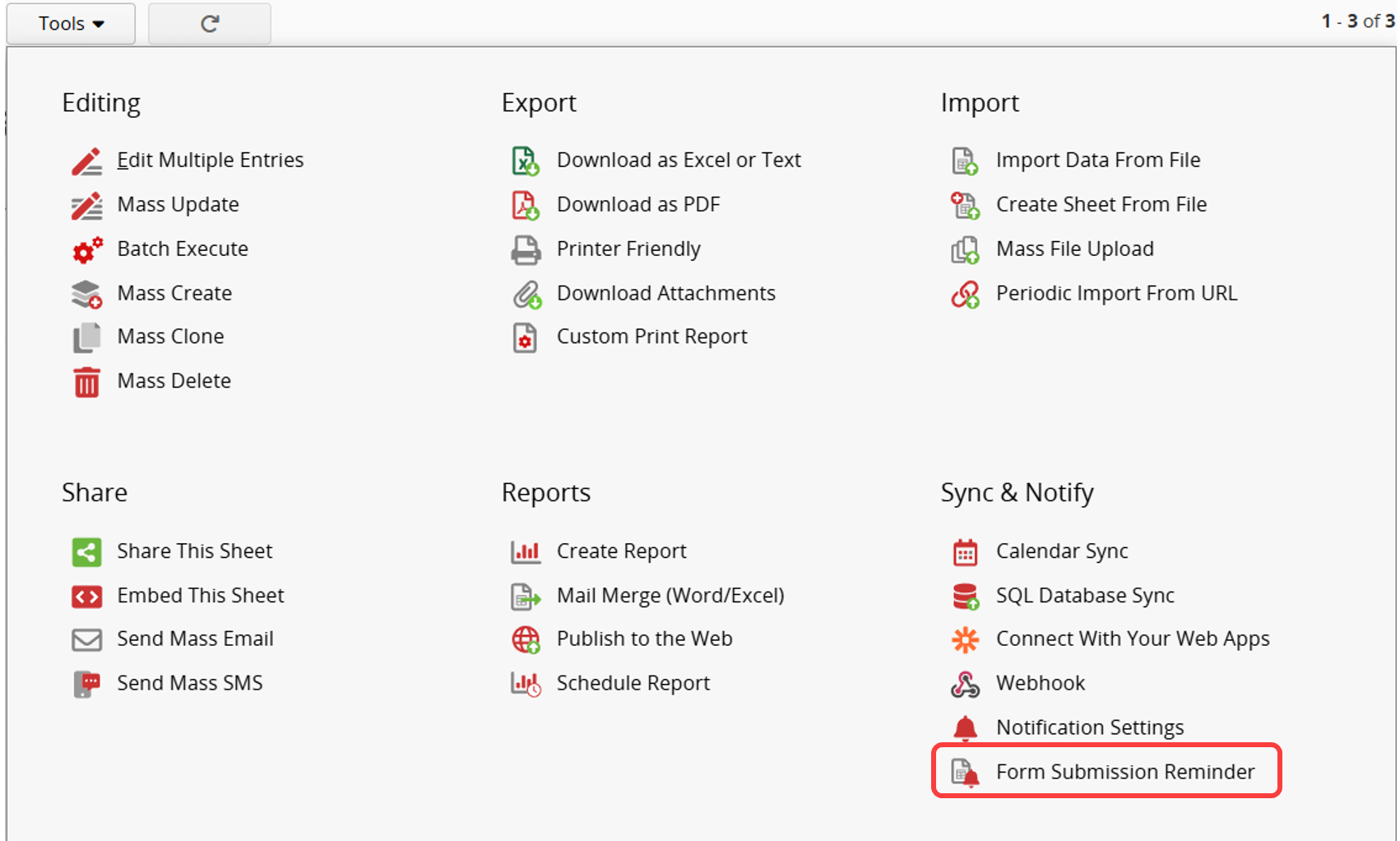
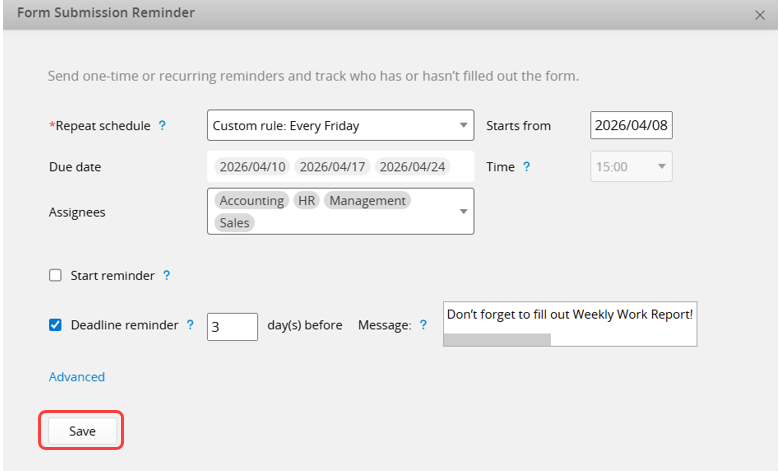
From the Listing Page or Form Page, click Tools > Sync & Notify > Form Submission Reminder.
Next, you can configure the following settings.
Note: Only one set of reminder times can be configured per sheet.
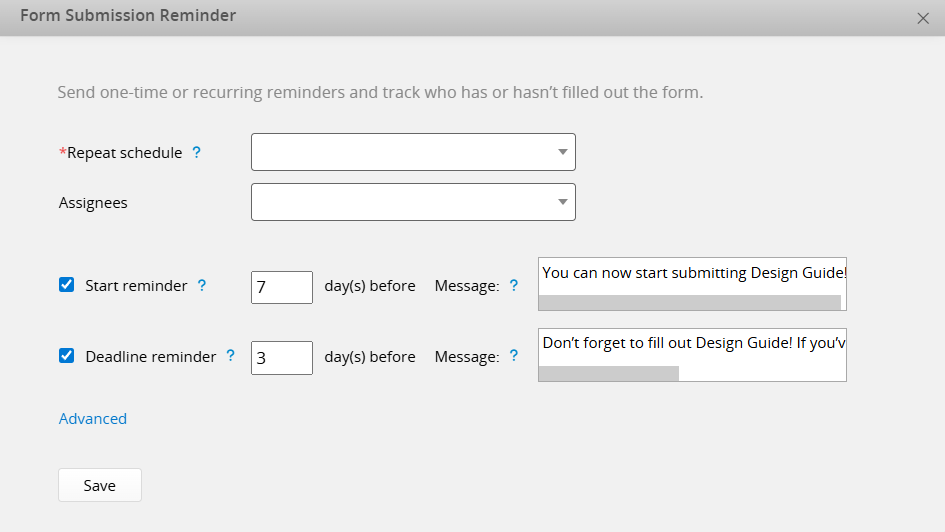
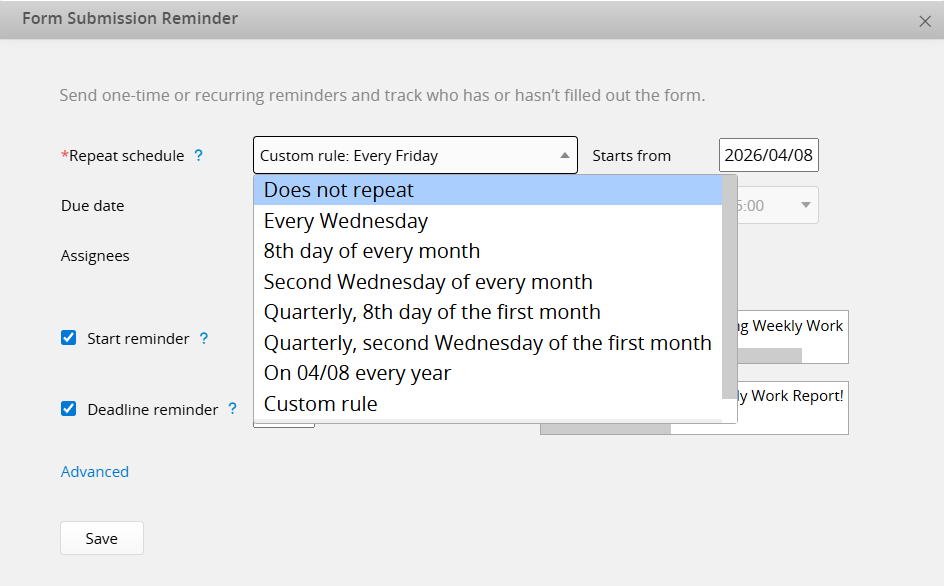
Repeat schedule: Select a repeat schedule for the submission reminder. If none of the preset options meet your needs, you can create a Custom rule. Once a repeat schedule is selected, the Due dates will be generated automatically based on that schedule. If Does not repeat is selected, you will need to specify the Due date manually.
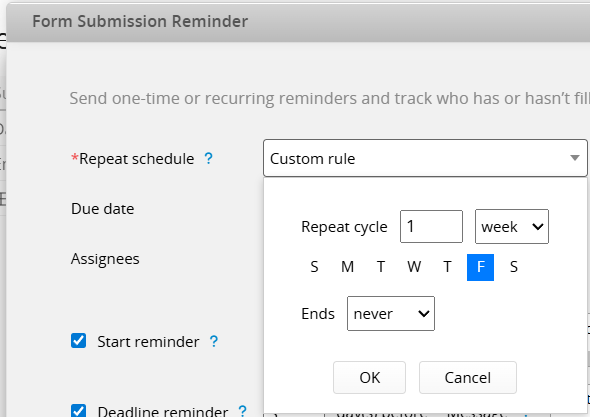
When creating a Custom rule, you can set the repeat cycle (e.g., every certain number of weeks, months, or years), specify when within that cycle the reminder is sent, and choose how the reminder ends. For example, with a weekly cycle, you can choose which day of the week to send the reminder and set an end date. For instance, you could send a reminder every Friday to submit the "Weekly Work Report," ending at the same time the following year.
Due date: After a Repeat schedule is selected, the system displays all generated due dates. You can click to remove any dates you do not need. Removed dates will appear in the Exclude recurring due dates field below. To restore a removed date, simply click it again in the excluded list.
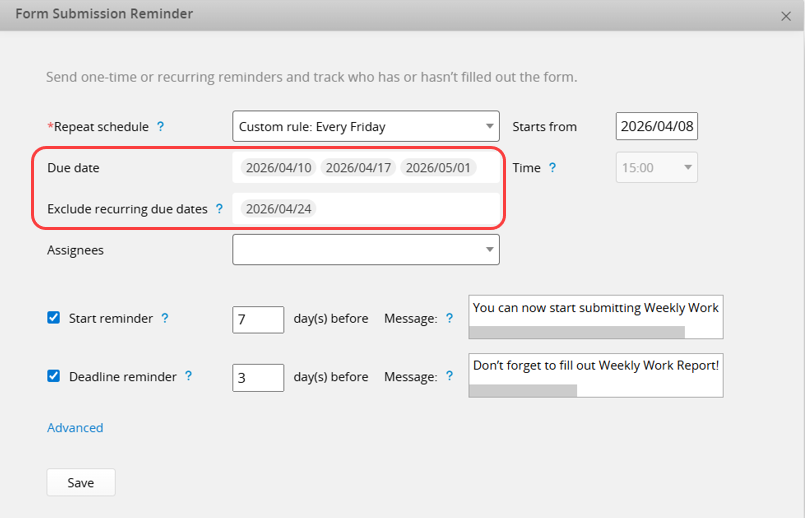
Starts from: Set the start date of the Repeat schedule. This setting is not required if Does not repeat is selected.
Time: Sets when the reminder is sent, and can be configured separately for each sheet. SYSAdmin can also adjust this for each sheet in Job Schedules.
Assignees: Select the users or user groups who should receive the Form Submission Reminder.
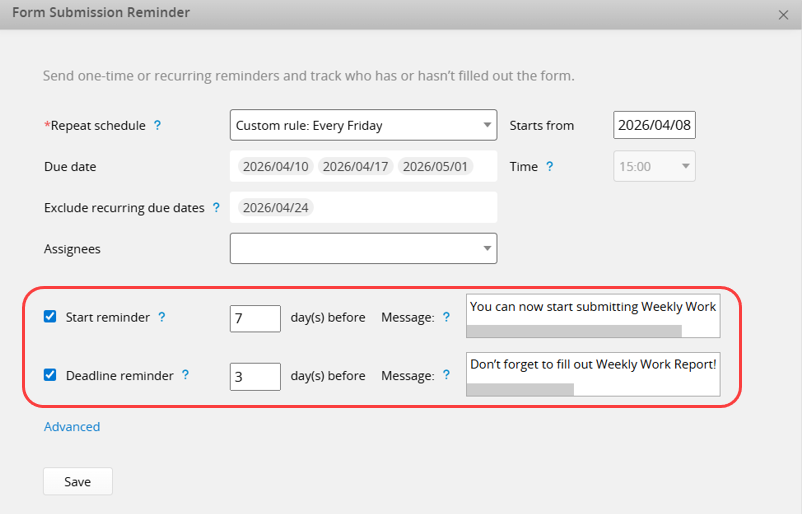
You can configure both the reminder timing and message as follows:
Start reminder: Sends a reminder a few days before the due date to notify users that they can start submitting. The reminder will not be sent earlier than the configured "Submission start date" (if set).
Deadline reminder: Sends a reminder a few days before the due date to prompt users to complete their submission.
Note: The minimum value for "days before" is 1.
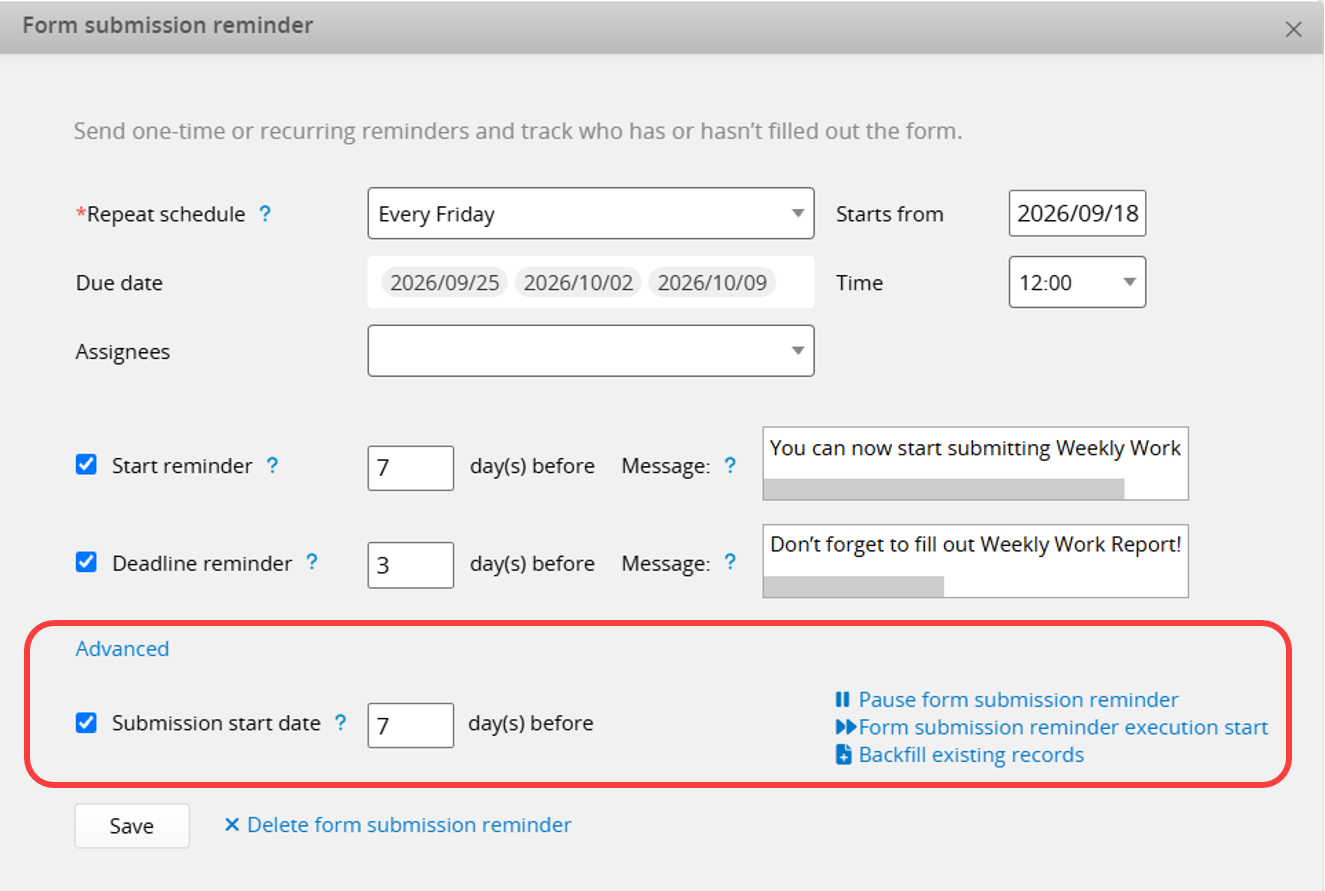
Submission start date: Enter the number of days before the due date within which submissions will count toward that due date (this setting does not restrict submitting the form itself; users can still submit at any time). If multiple due dates overlap, a submission will be counted for all applicable due dates. Example: With due dates on 8/5 and 8/8 and a 7-day early submission window, an entry on 8/4 counts for both due dates; without this setting, it would only count for 8/5.
Pause or Start: After saving the reminder, open Advanced to pause the reminder or start the Form Submission Reminder.
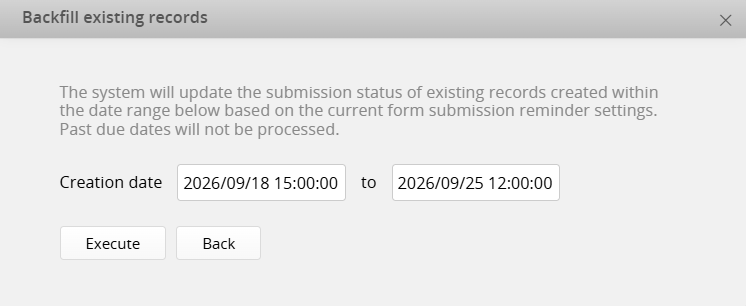
Backfill existing records: Executing this updates the submission status of existing records created within the specified date range, based on the current reminder settings. Past due dates will not be processed.
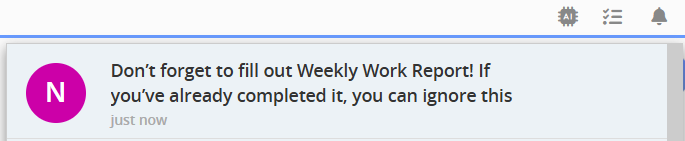
After completing the configuration, click Save below. If today falls within the reminder period, a notification will be sent immediately.
Afterward, reminders will be sent according to the configured schedule via Email and Web notifications (notification methods cannot be disabled).

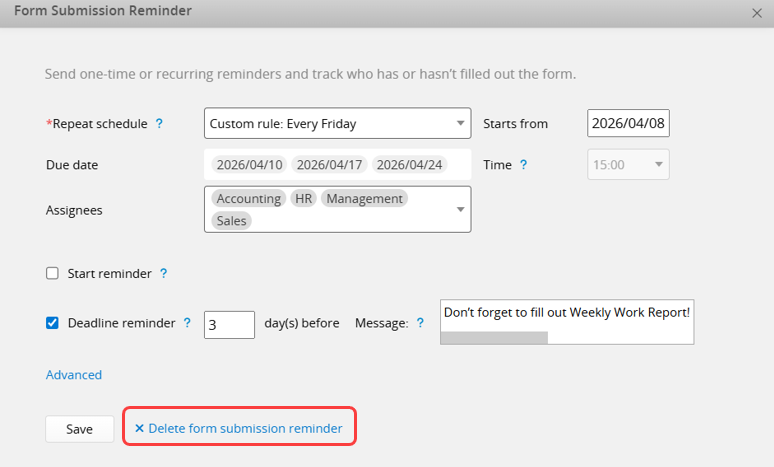
To delete a saved form submission reminder, click Delete form submission reminder next to the Save button. This will remove the reminder settings, historical submission records, and related schedules.
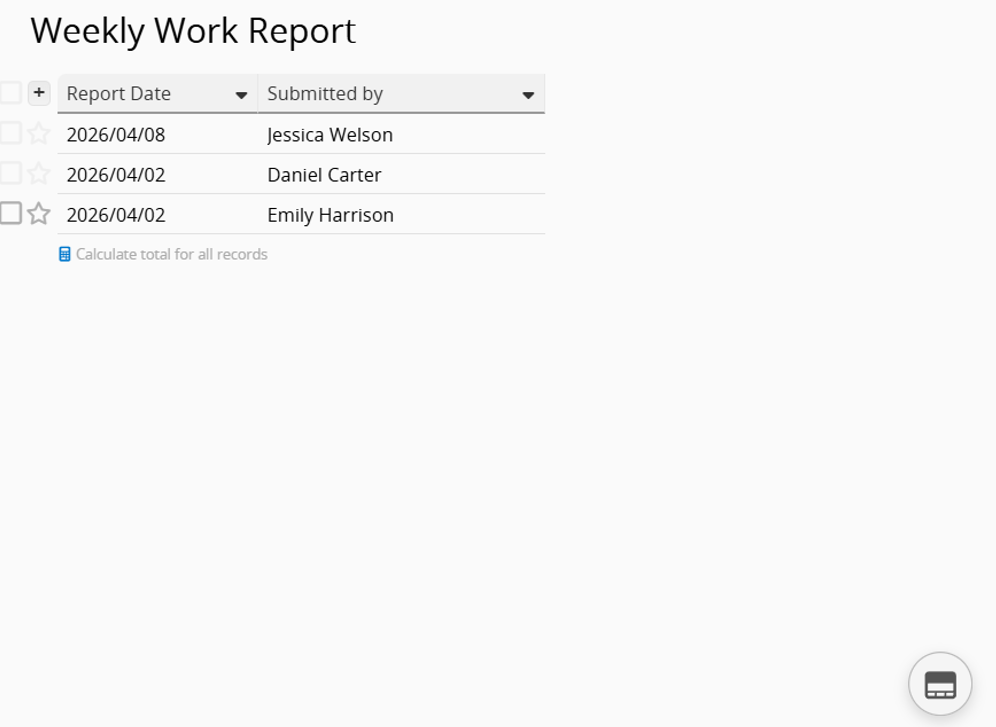
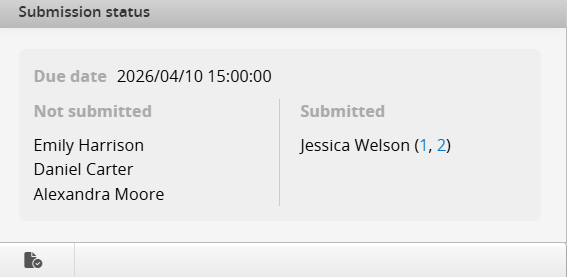
After the reminder is set up, you can click the icon in the bottom right corner of the Listing Page to view each user's submission status. The system displays up to five users by default, with the option to expand and view all users. Clicking a user's name opens the corresponding submission record. If a user has multiple submissions, they are labeled as (1,2...) to indicate multiple records.
1. Recurring due dates are generated based on the company's time zone.
2. Adjusting the Job Schedules time alone will not trigger notifications. You must save the Form Submission Reminder settings again to reactivate the schedule.
3. If a due date that has already started is removed from the settings, the submission status for that period will also be cleared.
 Thank you for your valuable feedback!
