 FAQ
FAQ
FAQ
FAQ
After uploading a file to Ragic, if you would like to share it with others via a hyperlink, you can obtain the download link using the following methods.
Open the uploaded file in a new window from the sheet, then copy the URL from your browser. This URL can be used directly as a download link.
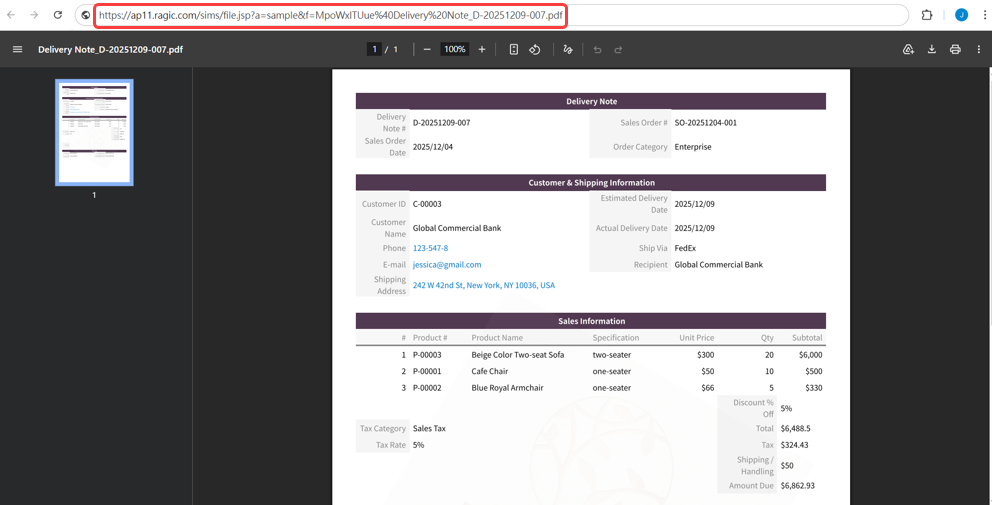
You can also construct the download link using the following format:
https://{Server Name}.ragic.com/sims/file.jsp?a={Account Name}&f={File Name (raw value)}
For example, if your Ragic URL is:
https://ap11.ragic.com/sample
You can identify the following information (for more details about the Server Name and Account Name, please refer to this document):
{Server Name}: ap11
{Account Name}: sample
{File Name (raw value)}: The raw file name obtained from the Field Info
Using the example below, if the file name (raw value) is: YnDCtywjhQ@Delivery Note.pdf
Then the download link would be:
https://ap11.ragic.com/sims/file.jsp?a=sample&f=YnDCtywjhQ@Delivery Note.pdf
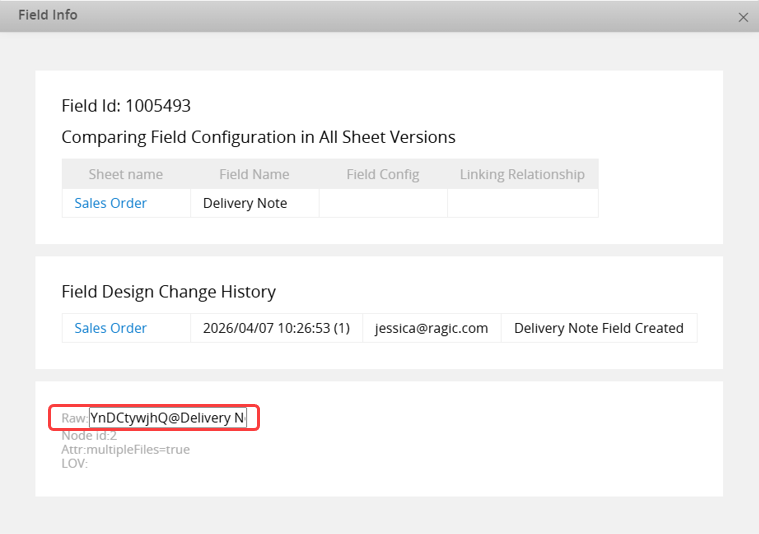
Before sharing the file download link, please make sure the following access settings are properly configured to ensure users can access the file:
1. File Download with User Authentication in Company Settings
This setting can be adjusted based on your needs:
When set to Yes, the system will check whether the user has the access right to view the original record. Only users with the appropriate access rights can download the file.
When set to No, no access right check will be performed, and anyone with the link can download the file.
2. Download Files from the Listing Page
If you need to download files from the Listing Page, make sure the corresponding access right is enabled in the Feature Access Settings.
 Thank you for your valuable feedback!
