 User guide
User guide
User guide
If you don't see this feature on the sheets, this may be related to your Feature Access Settings. Please contact your SYSAdmin to check whether the "Delete Record" permission is enabled.
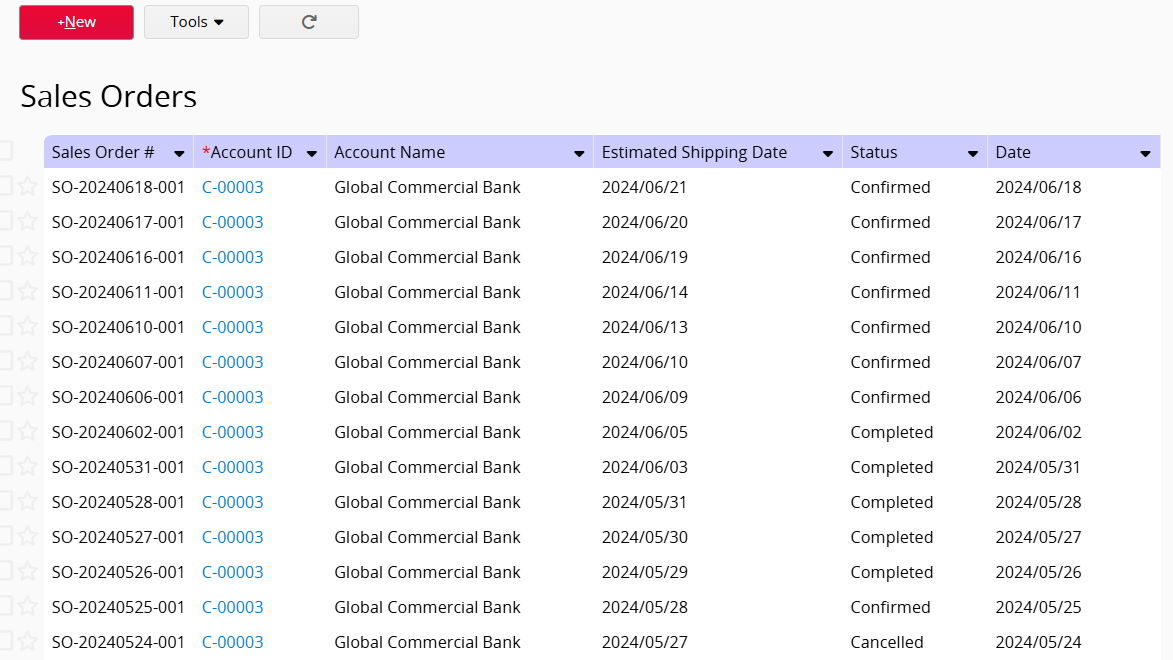
Navigate to the Form Page of the entry you would like to delete by clicking it on the Listing Page.
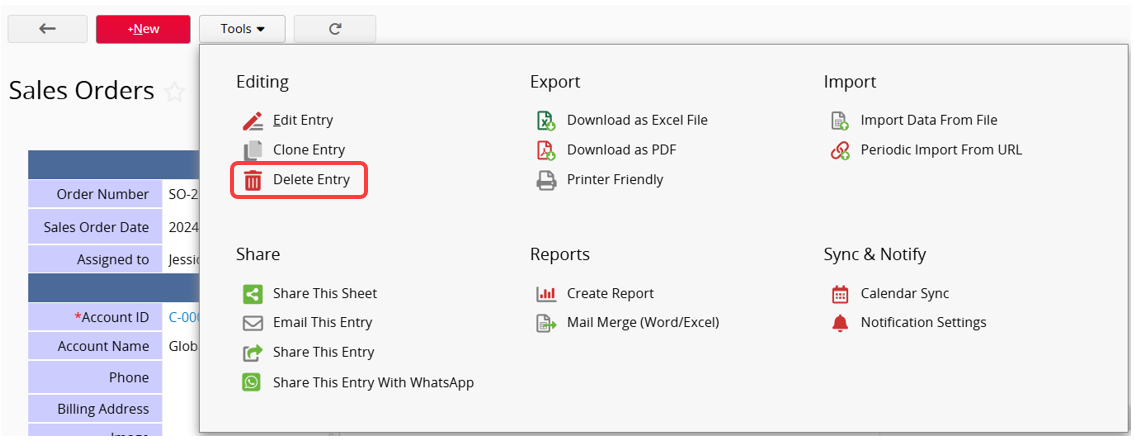
Click Tools and select Delete Entry.
This feature requires "Admin" or "Survey User" access rights on the sheet. If you don't see this feature on the sheets, this may be related to your Feature Access Settings. Please contact your SYSAdmin to check whether the "Mass Delete" permission is enabled.
You can filter the records you want to delete on the Listing Page.
Click Tools and select Mass Delete to delete all filtered entries.
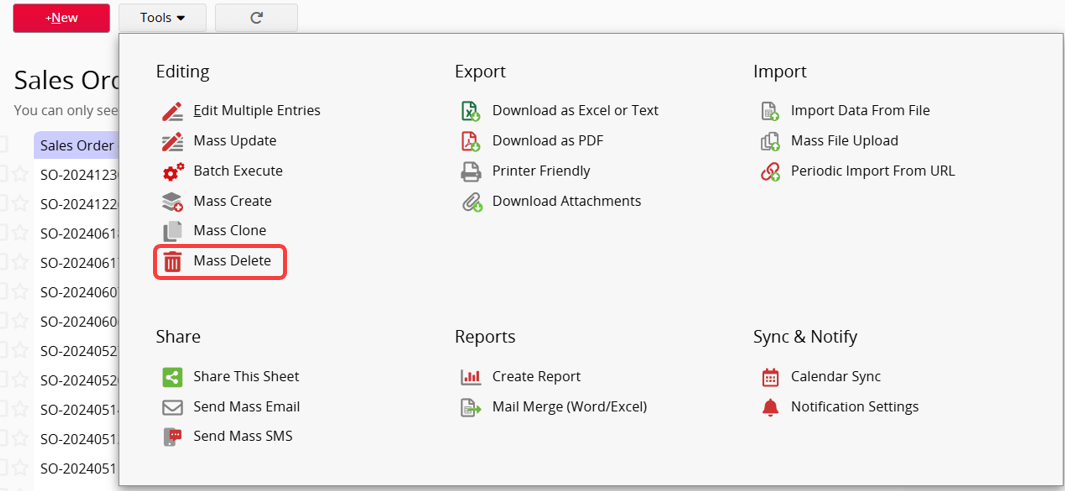
Note: Mass Delete will remove all filtered entries. If no filter is applied, this action will delete all entries.
If you don't see this feature on the sheets, this may be related to your Feature Access Settings. Please contact your SYSAdmin to check whether the "Fast Delete Function" permission is enabled.
You can choose whether to enable Fast Delete Mode in the confirmation window when performing a Mass Delete.
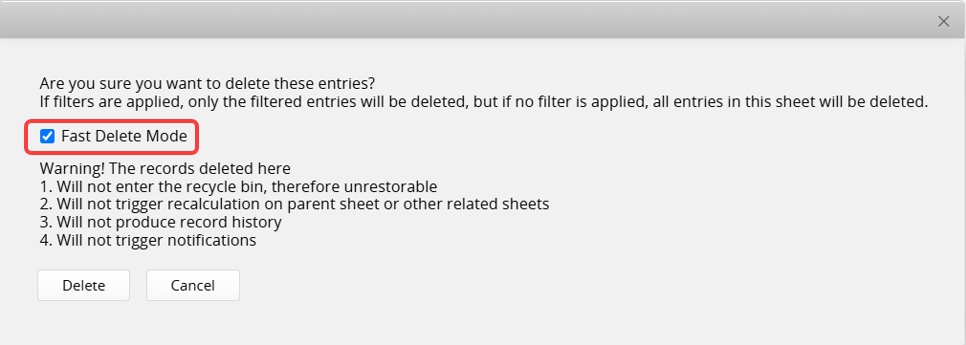
The following points should be noted:
The records deleted here
1. Will not enter the recycle bin, therefore unrestorable
2. Will not trigger recalculation on parent sheet or other related sheets
3. Will not produce record history
4. Will not trigger notifications
 Thank you for your valuable feedback!