 User guide
User guide
User guide
If you don't see the following features on the sheets, this may be related to your Feature Access Settings. Please contact your SYSAdmin to check whether the "Mass Update Records" permission is enabled.
If you have Admin or Survey User Access Rights and want to update a specific field value for all filtered or selected entries in the Listing Page (e.g., changing the status to "Completed" for all entries), or replace a specific string in a field (e.g., changing "Apple" to "apple" in the phrase "This is an Apple"), you can use Mass Update.
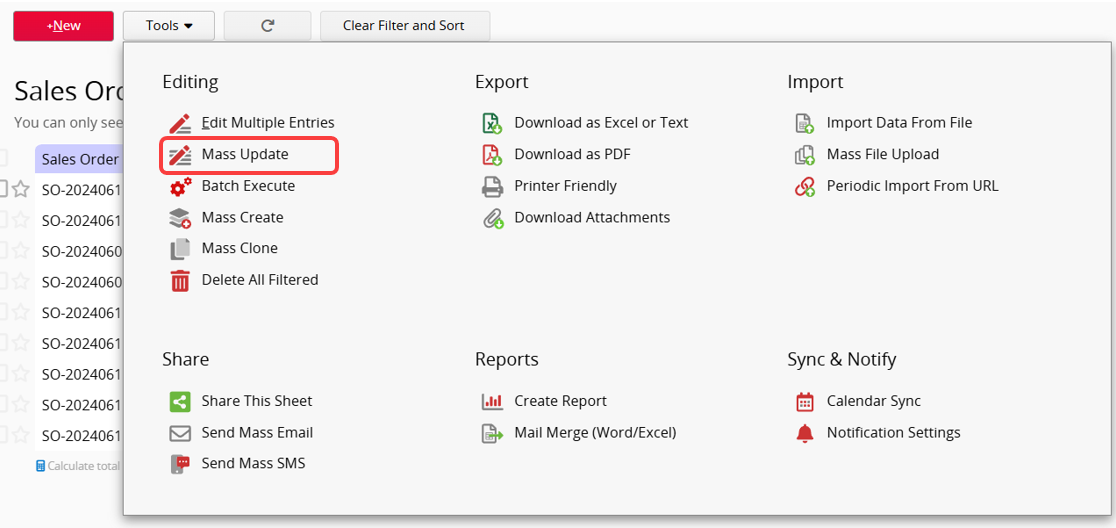
To modify the field values of multiple entries, go to the Listing Page, click on Tools, then select Mass Update. In the Update tab, choose the field you want to modify and enter the new value.
If you want to modify multiple field values, you can click the + button to add additional fields for updating.
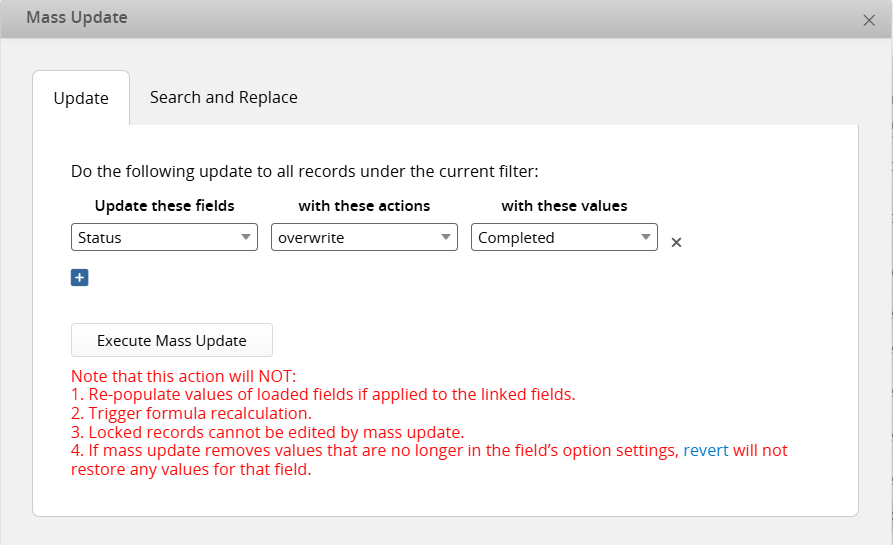
To change a value in a Selection field to another existing selection, you can filter the records and update them directly.
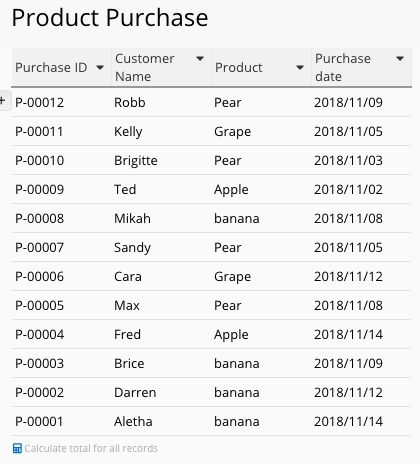
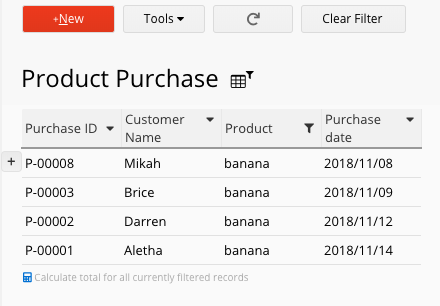
If you want to modify the text of a selection itself, for example, suppose your current data is as shown below, and you want to change the selection "banana" to "Banana" for consistent formatting (capitalized first letter):
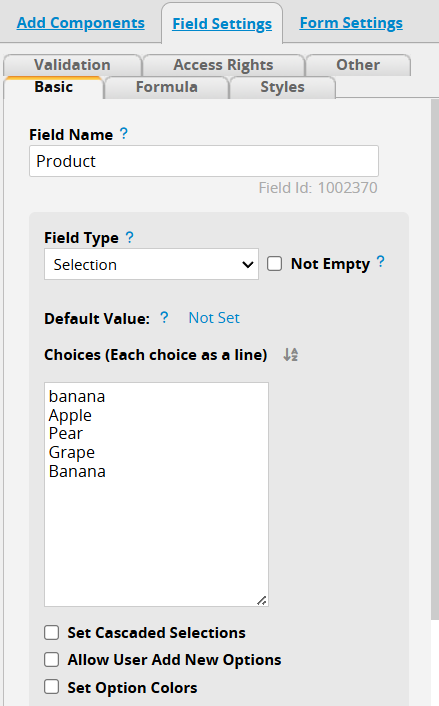
You will need to first add the new selection "Banana" to the Selection field in Design Mode.
Next, filter the records you want to update on the Listing Page, then use Mass Update to change the field value.
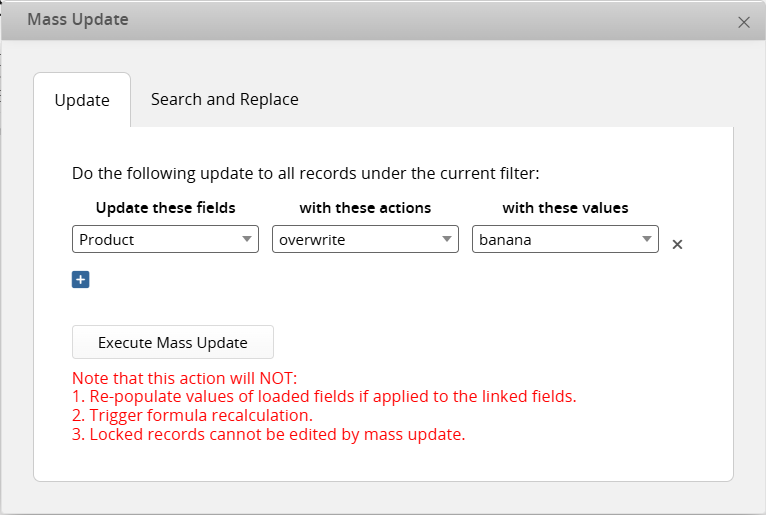
After completing the steps above, you can return to Design Mode to remove the original "banana" option.
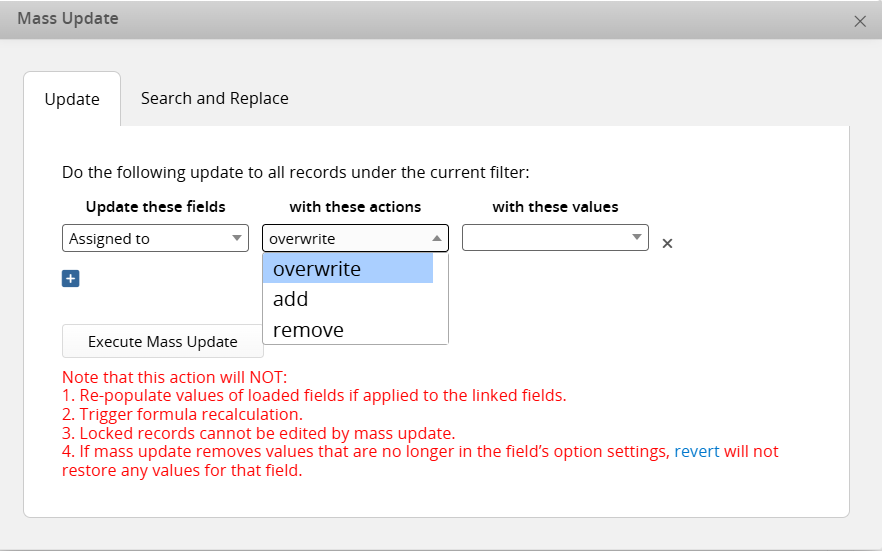
If the field being modified is a Multiple Select field (e.g., Multiple Select, Multiple Select Users, Multiple Select Groups), you can choose to overwrite all options or add/remove specific ones.
Note: Multiple Select Linked Field are currently not supported for Mass Update.
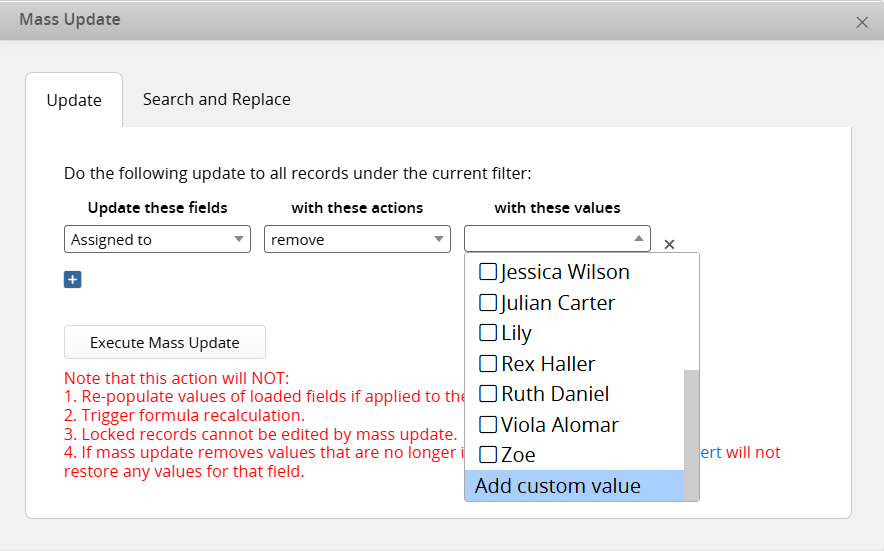
If you want to remove an option no longer in the field's settings, select Add custom value and enter the option to remove.
Note that this action will NOT:
1. Re-populate values of loaded fields if applied to the linked fields.
2. Trigger formula recalculation.
3. Locked records cannot be edited by mass update.
4. If mass update removes values that are no longer in the field's option settings, revert will not restore any values for that field.
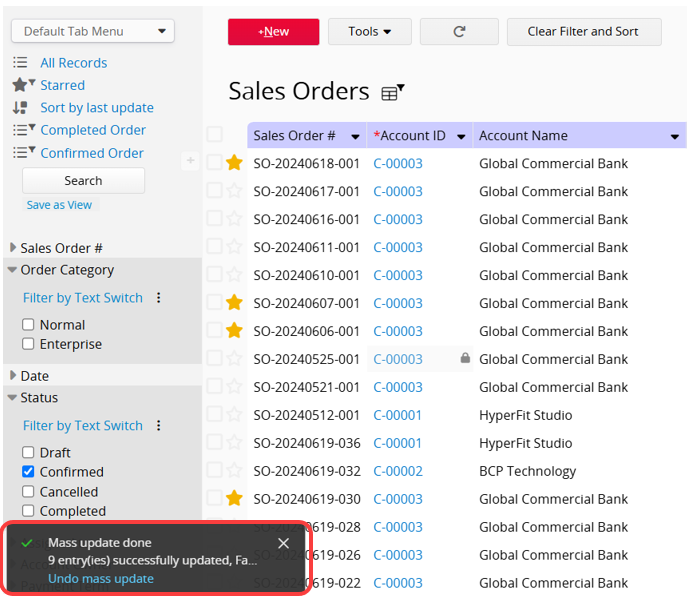
After clicking "Execute Mass Update", the system will execute the action in the background, and you can view the progress in the lower-left corner of the screen.
To modify part of the string within a Free Text Field across multiple entries, go to the Listing Page, click on Tools, then select Mass Update. In the Search and Replace tab, choose the field you want to modify, enter the strings to search for, and specify the replacement string.
If you want to modify multiple field values, you can click the + button to add additional fields to update.
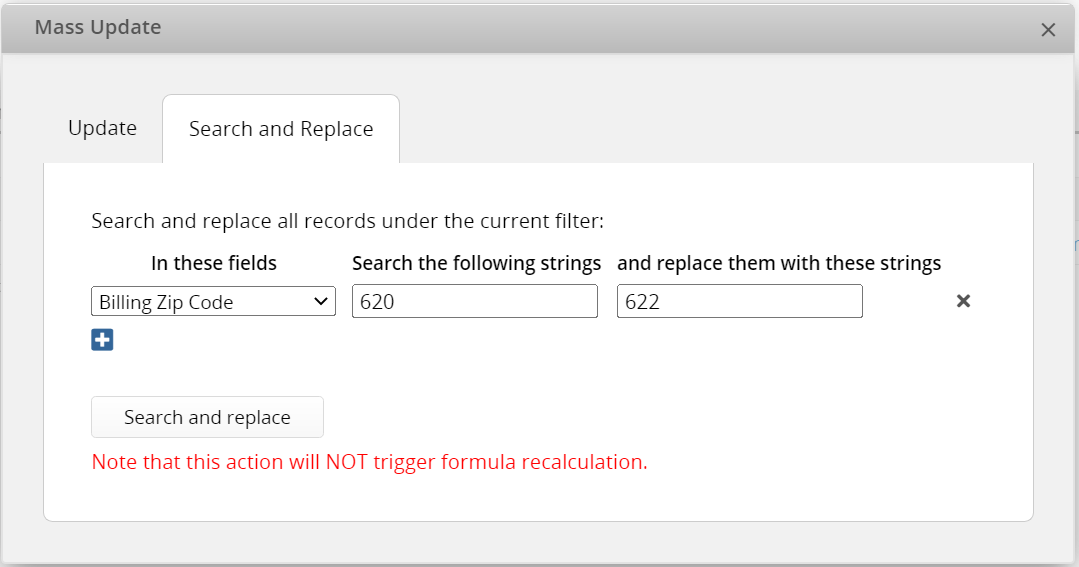
Note: This action will NOT trigger formula recalculation.
 Thank you for your valuable feedback!