 App guide
App guide
App guide
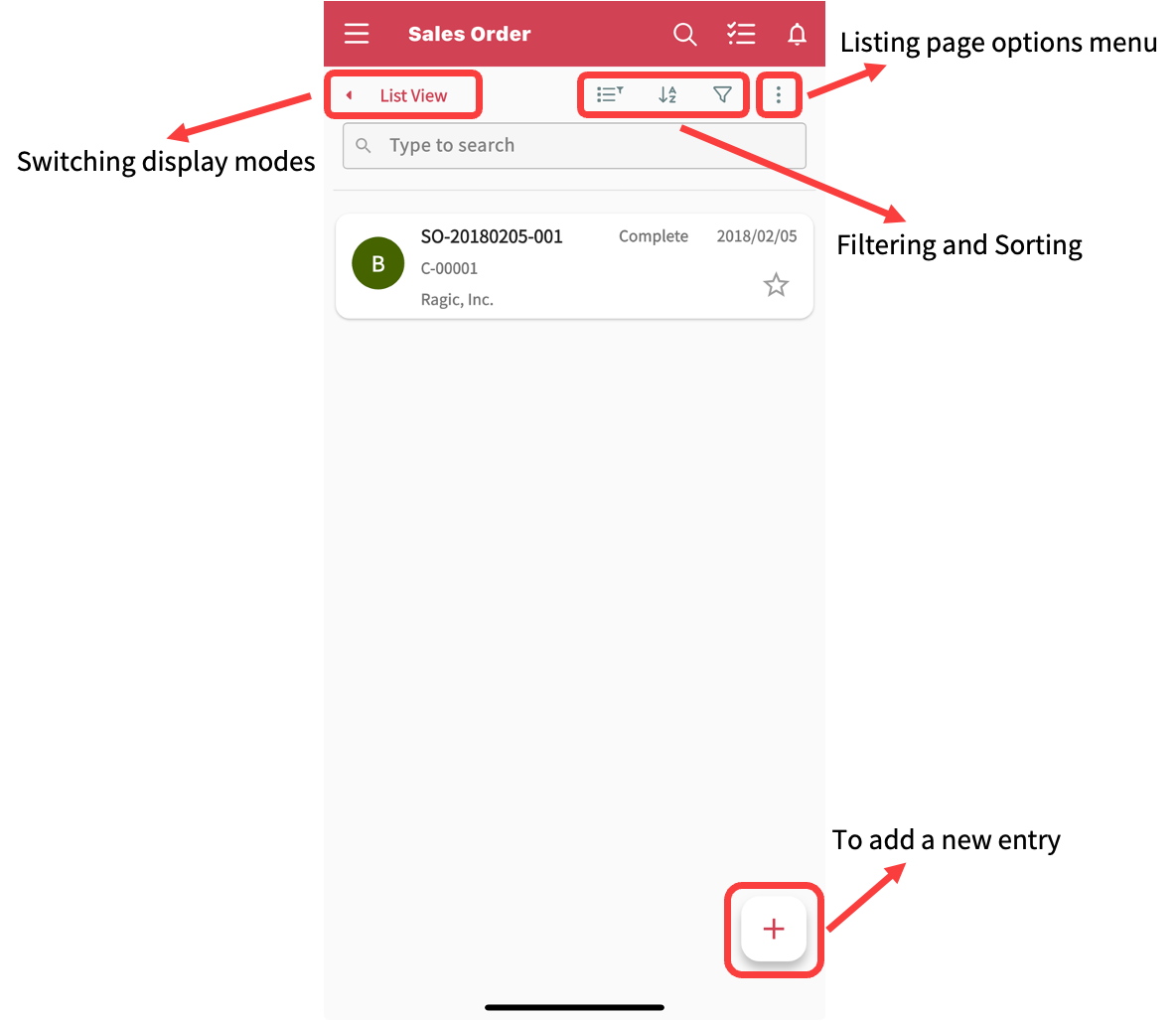
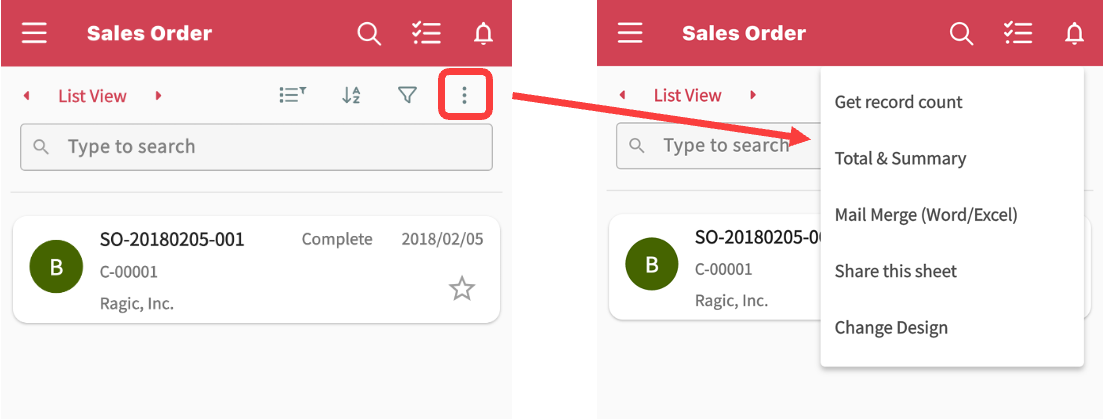
After entering a sheet from the homepage, the first screen displayed is the Listing Page. At the top, a frequently used toolbar is available for switching the display modes, and for filtering and sorting records. In the upper-right corner, the options menu offers more advanced features.
To add a new entry, simply tap the "+" icon in the bottom-right corner.
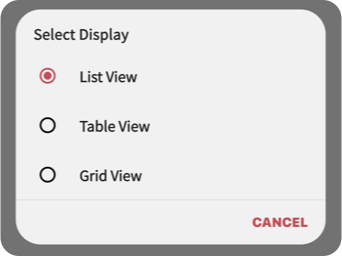
There are three available display modes for viewing data in the app: List View, Table View, and Grid View.
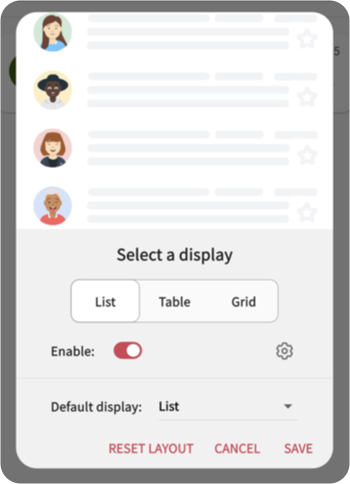
The Listing Page in the app is set to List View by default. To change the default mode, you will need to go to the Options Menu in the top-right corner and select Change Design.
For each display mode, you can tap the gear icon to open the advanced settings, adjust the proportion of the displayed data range, and select the desired default display mode.
After completing the settings, remember to tap Save so the Listing Page is displayed with the latest settings.
Please note: if Conditional Formatting is applied on the Listing Page, it will only be visible in Table View.
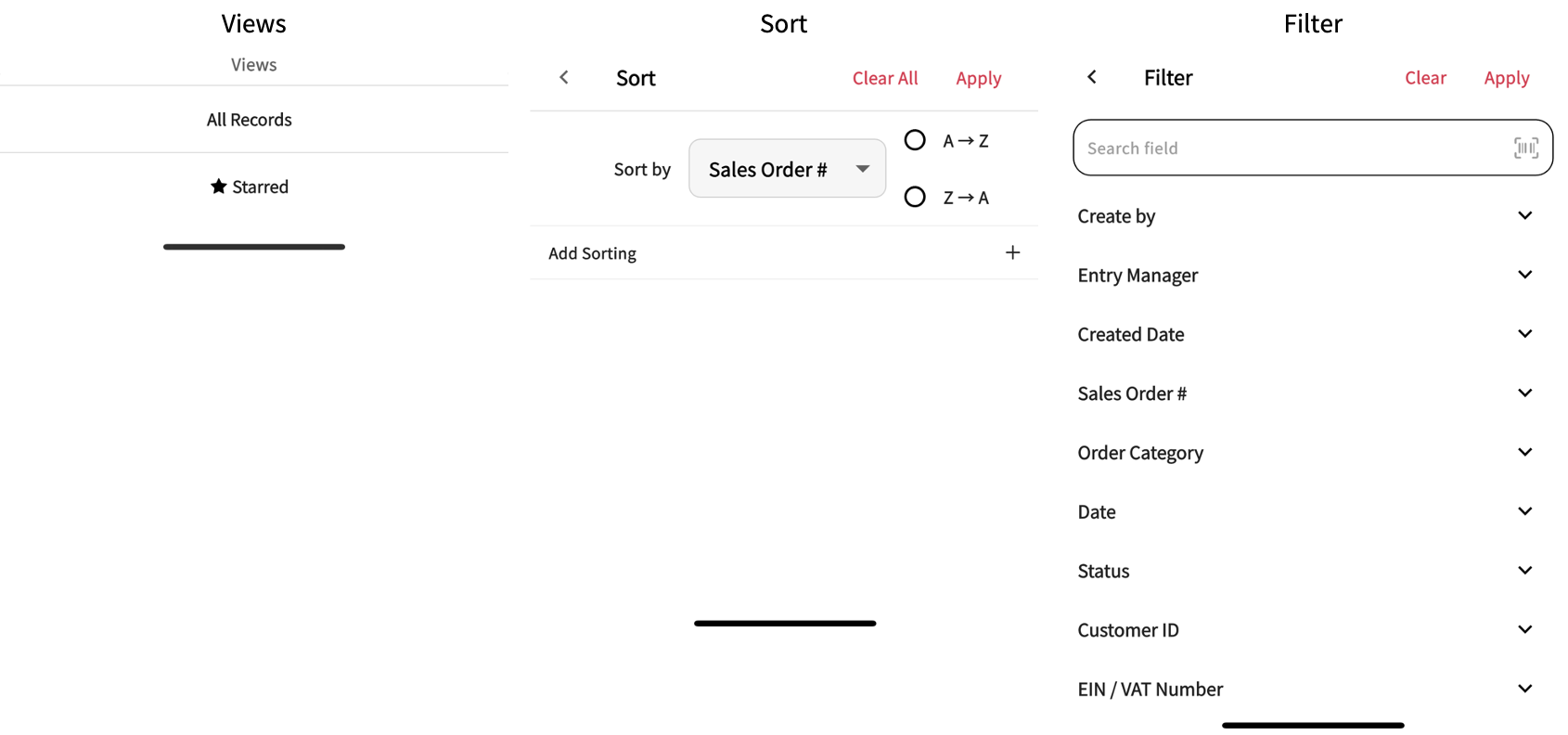
You can either apply pre-configured filters saved in the web version, or set up custom filters and sort conditions directly within the app.
However, please note that any filter or sort settings configured in the app are temporary and cannot be saved for future use.
Tap the options menu in the top-right corner to access the following functions:
・Get record count: Counts the total number of records in the sheet. If filters are applied, the count is based on the filtered results.
・Mail Merge (Word/Excel): Requires prior configuration in the web version before it can be used in the app.
・Share this sheet: You can either generate a QR code to share, or copy the URL and send it to others to view the sheet (please make sure they have the appropriate Access Rights).
・Change Design: Configure the display modes of the Listing Page.
 Thank you for your valuable feedback!