 Learning center
Customer feedback comes in every day through email, support inboxes, online reviews, and other channels. Do you have to spend a lot of time reading each message just to find out who is complaining and which feedback needs action?
Whether you run an ecommerce store, a retail business, a software service, or a manufacturer with after-sales service, you constantly receive customer feedback. Some is simple praise, some is a question, and some sounds dissatisfied or even signals that the customer is considering switching vendors. As the volume grows, the people responsible often have to read every message and judge its urgency themselves, so the customers who most need a prompt reply can easily get buried. To make things worse, some feedback looks like praise but is actually sarcastic, for example, "Great, I waited three days and nobody replied." Keyword filtering alone cannot reliably catch this.
You can ask AI tools like ChatGPT or Claude to analyze customer feedback, but you still have to copy and paste each message and manually organize the results back into your master sheet, which becomes another burden as the volume grows.
That is where Ragic's AI Agent template comes in. Once customer feedback is entered into a sheet, the AI Agent automatically classifies the sentiment as positive, neutral, or negative based on tone, and flags the feedback that needs attention. The results are saved directly in your database, so your team can quickly understand customer sentiment and prioritize follow-ups.
If you do not have a Ragic account yet, please complete registration first. After registering, you can start with the Free Plan. To explore more features, you can also apply for a 30-day free Professional Plan trial with no credit card required. No charges will be made without your consent. For more information, please refer to the Pricing Page.
After logging in, click the  icon in the top right corner to open the AI panel, then click AI Agent.
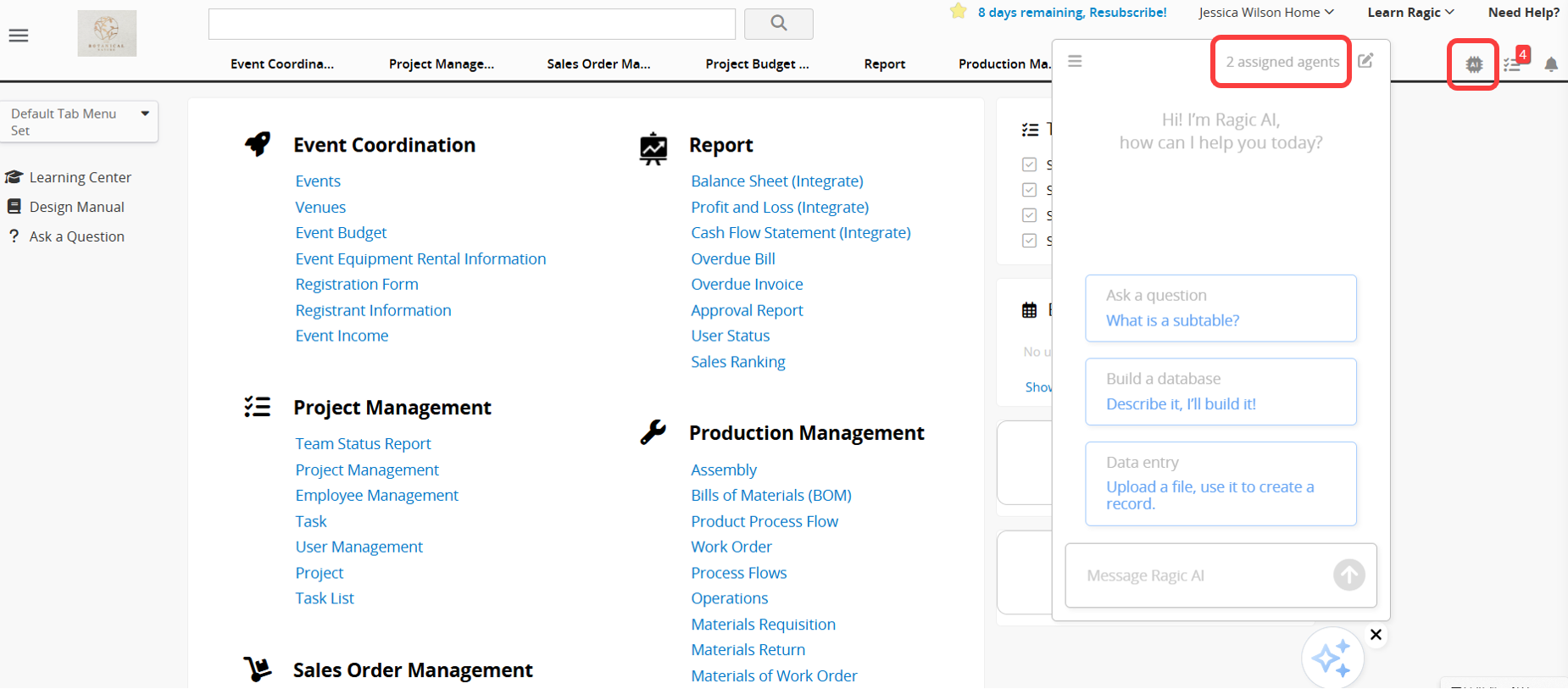
Before getting started with AI Agent, please note the following:
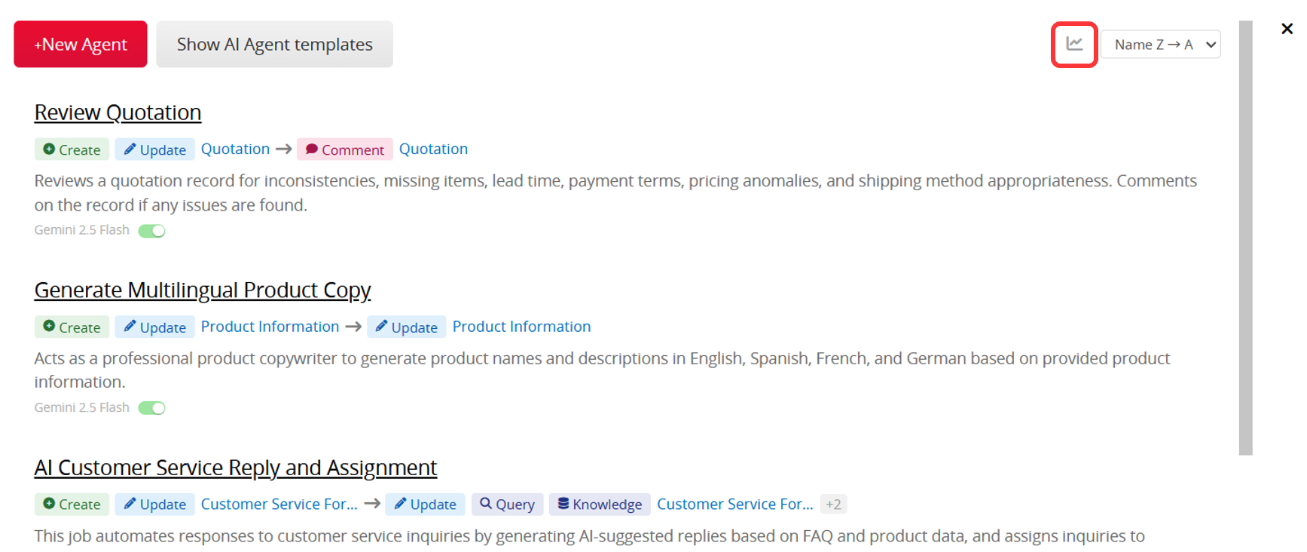
1. Running an AI Agent consumes AI Usage, and the amount varies depending on the complexity of the task and the selected Model. After each run, you can check the Usage Report to see how much AI Usage a single run consumed, estimate long-term costs, and decide whether to make adjustments. To see estimated examples before installing a template, please refer to the AI Usage article.
2. Each database includes free monthly AI Usage for testing, and the amount varies by plan. Paid Plans include free usage based on the plan and the number of users. A Trial account receives a fixed amount of AI Usage for evaluation, regardless of plan or user count. The Free Plan also includes basic usage for testing. You can use the free AI Usage to explore and test the feature before deciding whether to upgrade your plan or purchase additional AI Usage.
3. When the free AI Usage is used up, the system will not charge you automatically. Instead, AI features will be paused. To continue using AI features, Paid Plans can purchase extra usage as needed. AI Usage is calculated in USD. Trial account cannot purchase additional AI Usage, and users on the Free Plan can continue using AI after monthly usage is refreshed. Charges are incurred only when you actively upgrade your plan or purchase additional AI Usage.
For more information about Ragic AI Agent, please refer to this article.
When creating a new AI Agent, you can find and apply the Feedback Sentiment Classifier template at the top of the page.
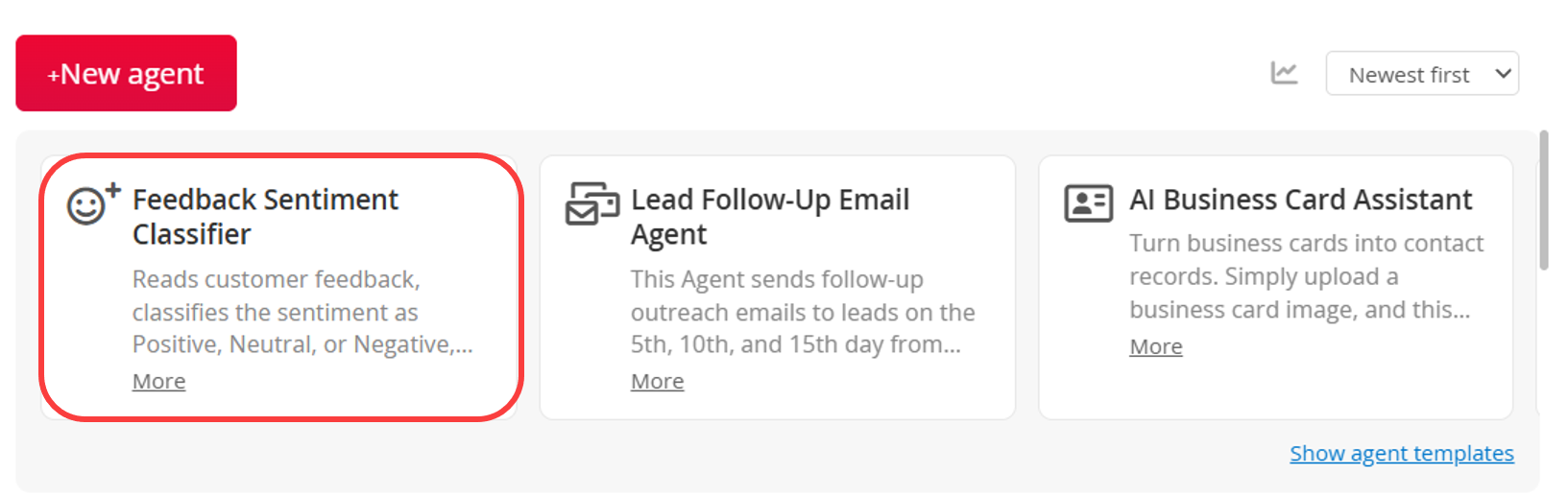
Depending on your current database needs, you can choose one of the following methods:
Method 1: Use the Template Sheet Directly
If your database is new or you have not yet created a sheet for managing customer feedback, it is recommended to start with the template sheet. Once the template is saved, the system will automatically install the "Customer Feedback" sheet and related settings. You can begin testing immediately using the built-in fields and workflows without designing everything from scratch. This is also a quick way to understand how the AI Agent works.
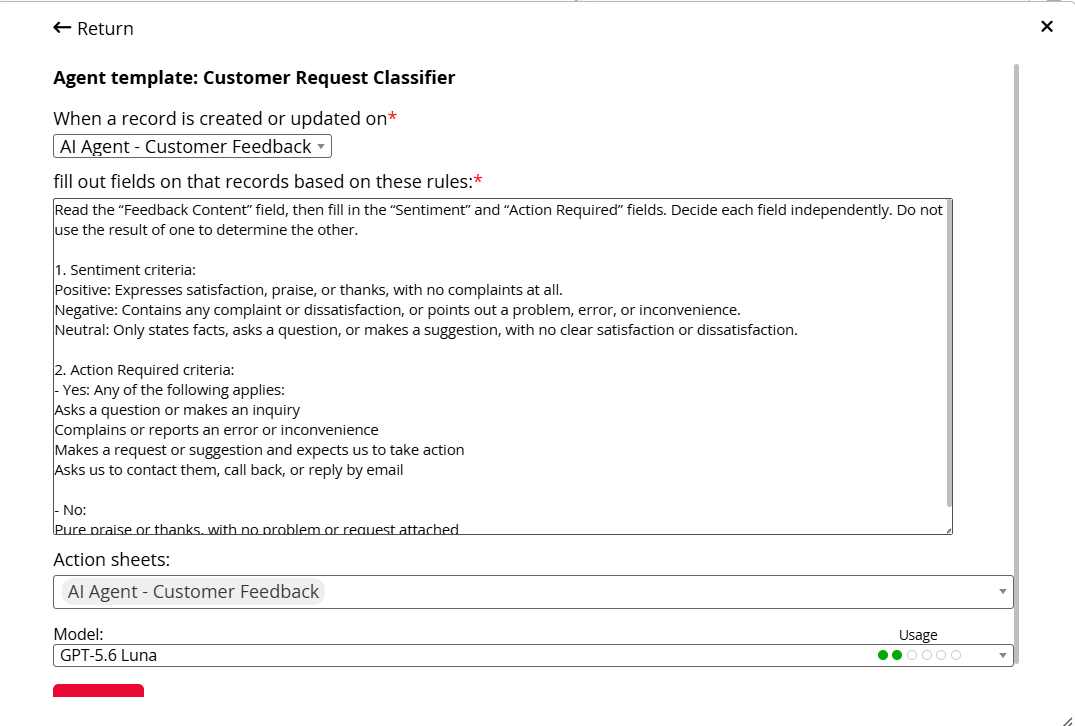
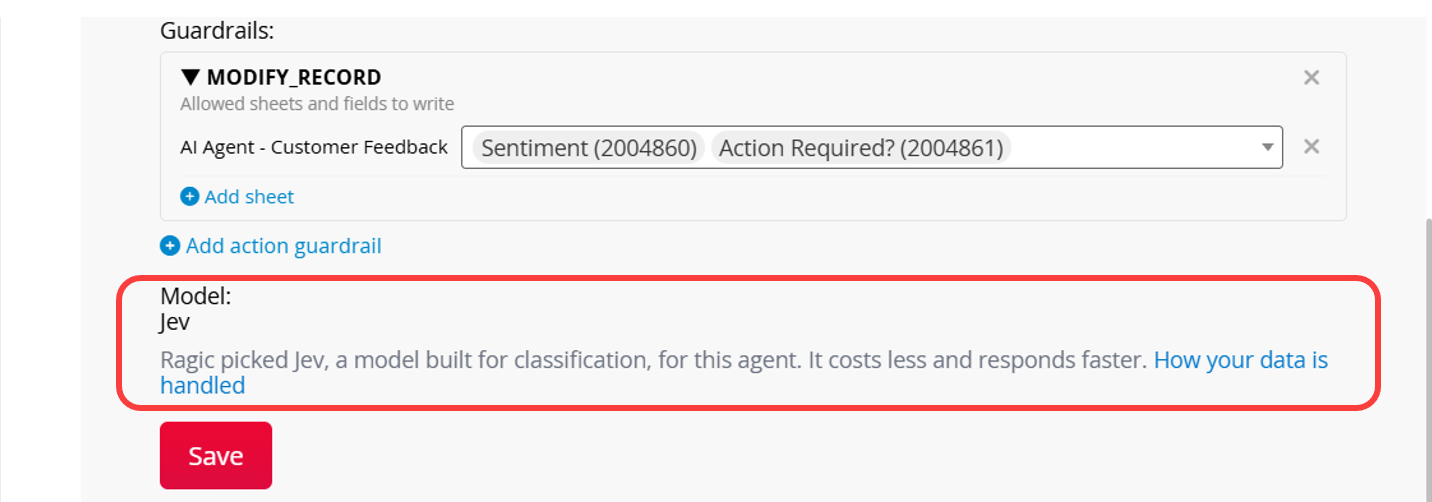
Because the template sheet and prompt are well suited to Jev, a decision model, Ragic automatically selects the Jev model after installation. The model appears only after installation, as shown below. It is selected by the system and cannot be changed through the interface.
Method 2: Apply the Template to Your Existing Sheet
If you already have a sheet for customer service records, complaint handling, or customer feedback, you can apply the AI Agent to your own sheet instead.
This option is ideal for teams with existing customer service or customer management processes, as it allows direct integration into current systems without rebuilding databases. However, after applying the template to your own sheet, you may need to adjust the Agent rules and settings to better fit your workflow.
With this option, if your sheet and prompt are well suited to Jev, Ragic still selects the Jev model automatically, and you cannot change it through the interface. If Jev is not a good fit, Ragic uses the default general-purpose model instead (currently GPT-5.6 Luna). You can also switch to a different model if needed.
When using the template sheet, you mainly need to fill in "Content". "Feedback ID", "Date", "Customer's Name", and "Feedback Channel" are optional, but filling them in makes searching and reporting easier later.
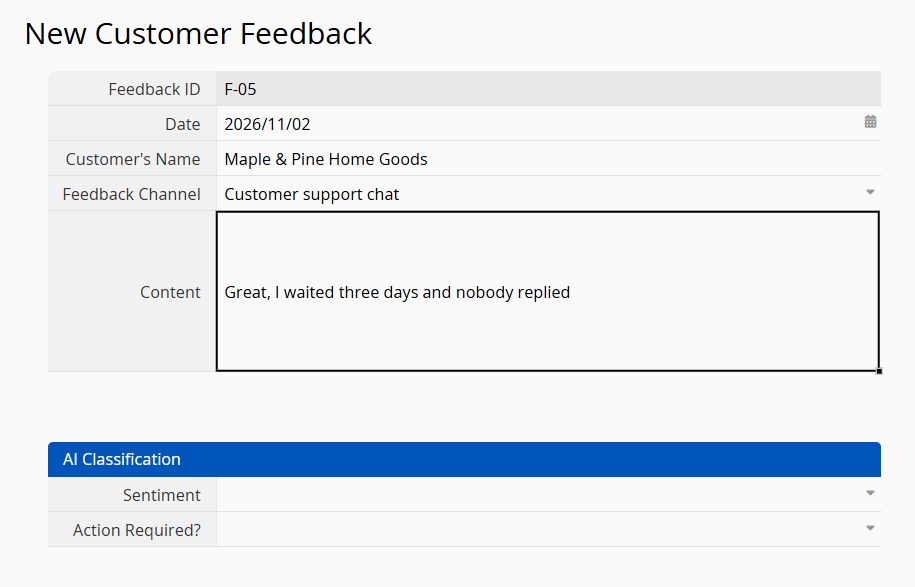
After saving the record, the AI Agent will automatically analyze the feedback and fill in two fields:
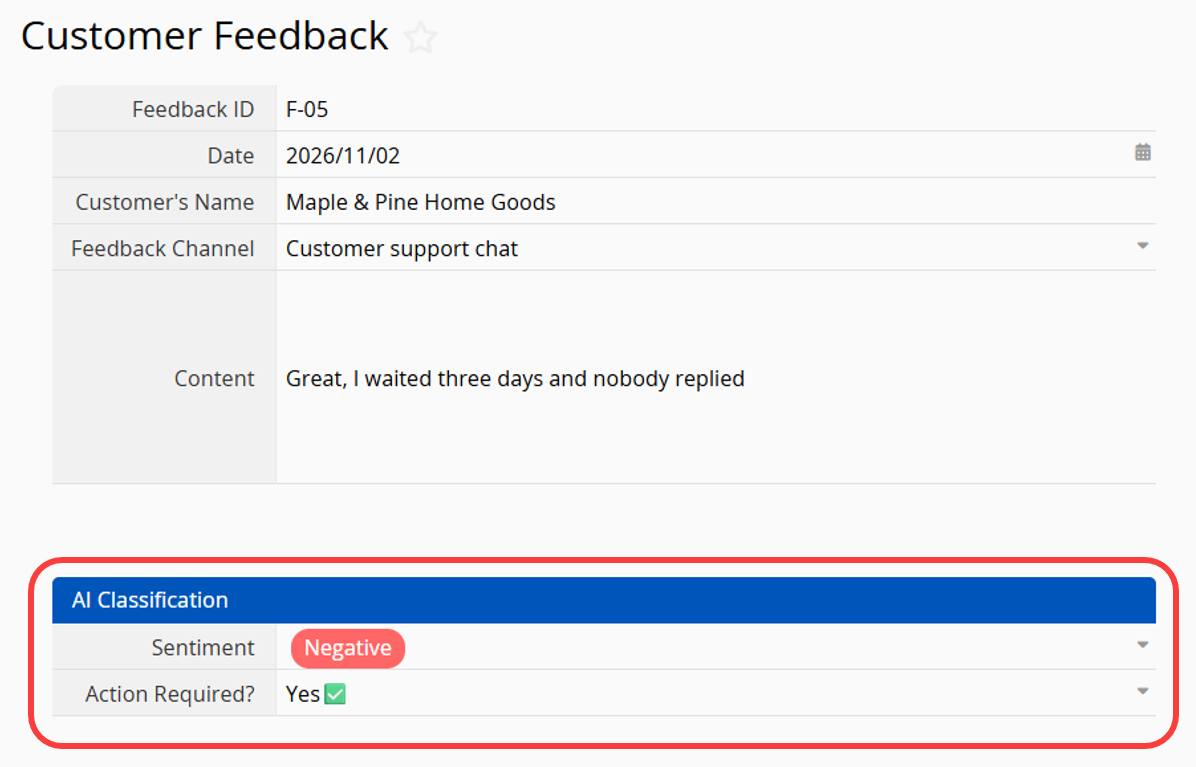
The AI Agent analyzes the tone of the whole message, not just individual keywords. For example, "Great, I waited three days and nobody replied" contains the word "Great", but it is still classified as negative and flagged as requiring action. Churn warnings such as "If this keeps up, we will consider switching to another vendor" are also flagged so you can respond to them first.
Once you have accumulated some data, you can also use filters or reports to quickly list the feedback where "Action Required" is "Yes", or calculate the proportion of negative feedback for each channel.
The template is only a starting point. You can customize fields, the AI prompt, and trigger rules to match your customer service and customer management workflow.
If you are applying the template to your own sheet, first review the AI prompt and confirm whether any field settings need adjustment. For example, check whether the required fields exist, whether field names match, and whether the data being used aligns with your needs.
For example, if your sheet records customer feedback in a field called "Complaint Details", you should also update the field reference in the AI prompt from "Feedback Content" to "Complaint Details". You can keep refining the setup through testing to find the approach that works best for your needs.
Other ways to customize the template include:
The template uses Jev by default. Jev is a model for classification and decision-making tasks. It is faster and uses less AI Usage than general AI models, but supports a narrower range of tasks. For details, please refer to this article.
Please note the following when customizing the template:
1. Keep the fields the AI fills in as Selection fields with fixed options or Checkbox fields: "Sentiment" and "Action Required" in the template are both Selection fields, so Jev can be used. If you add a field that requires the AI to write text, for example, "Reason for Judgment", a general AI model is used instead.
2. Write the judgment criteria directly in the AI prompt: Jev cannot query data from other sheets. Please write any classification criteria or reference rules directly in the AI prompt.
 Thank you for your valuable feedback!