 Learning center
Learning center
Learning center
Have you ever had a customer ask about a product using nothing but a photo—no item number, product name, or model number to go on? Finding the right product might be easy when you only carry a small number of items. But when you're managing hundreds or even thousands of products, locating a match can quickly turn into a time-consuming challenge.
Most of us are already familiar with image search when it comes to shopping online. Whether it's a photo found on the internet, a picture you took of a piece of clothing, or a decorative item you spotted, you can simply upload the image and quickly find similar products online.
However, things become much more challenging in a business setting. Let's say you work in the fashion industry: When a customer sends you a random photo of a garment and asks you to find a similar style, you're left either searching through product catalogs or trying to remember whether you've carried a similar item. Even when you've recalled carrying this item, you may not remember what it's called and which record it was. This process is mentally draining, time-consuming, and counter-productive.
This is where an AI Agent can help. You can easily download the AI Agent template on Ragic to get started right away.
If you prefer to build your own image-based product finder that analyzes your existing product photos and generates detailed descriptions for each one, this article provides step-by-step instructions on how to build one from scratch.
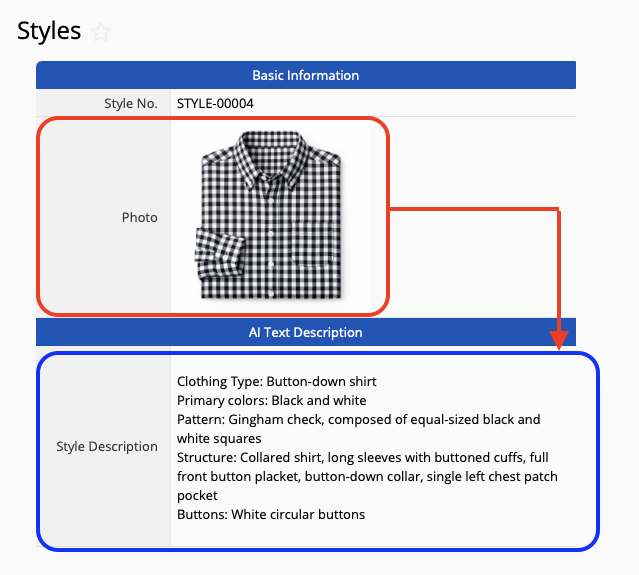
When uploading photos of similar products or clothing to a search form, the AI Agent will automatically identify styles that match the uploaded image's characteristics.
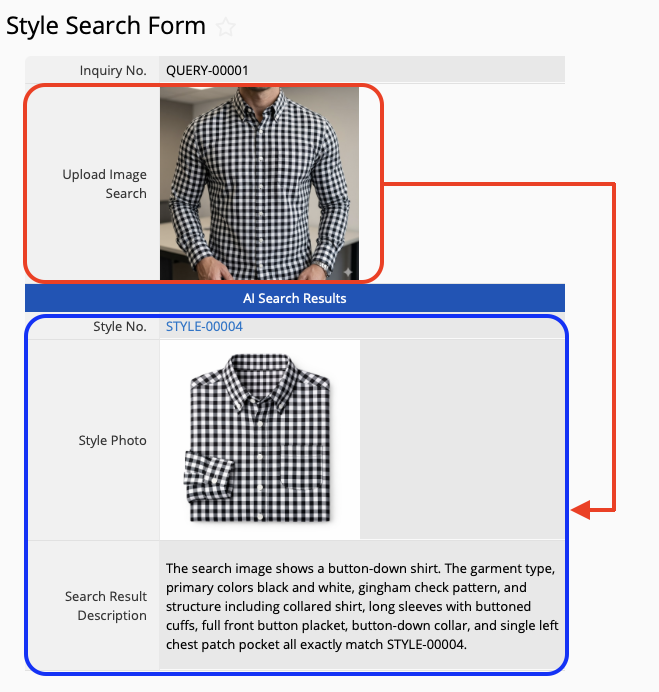
For this article, we'll use "clothing styles" as an example to demonstrate how you can build your own image-based product finder.
If you don't already have a Ragic account, we recommend signing up for an account. After signing up, you'll be able to start using the Free Plan. If you'd like to explore and test the platform more thoroughly, you can also upgrade and experience a 30-day free trial of the Professional Plan— no credit card information required.
Ragic will never charge you without your consent, so you can freely and confidently try it out. For more information about plans and pricing, please refer to our pricing page.
After logging in, click on the AI icon  in the upper-right corner to open up the AI panel, then select AI Agent.
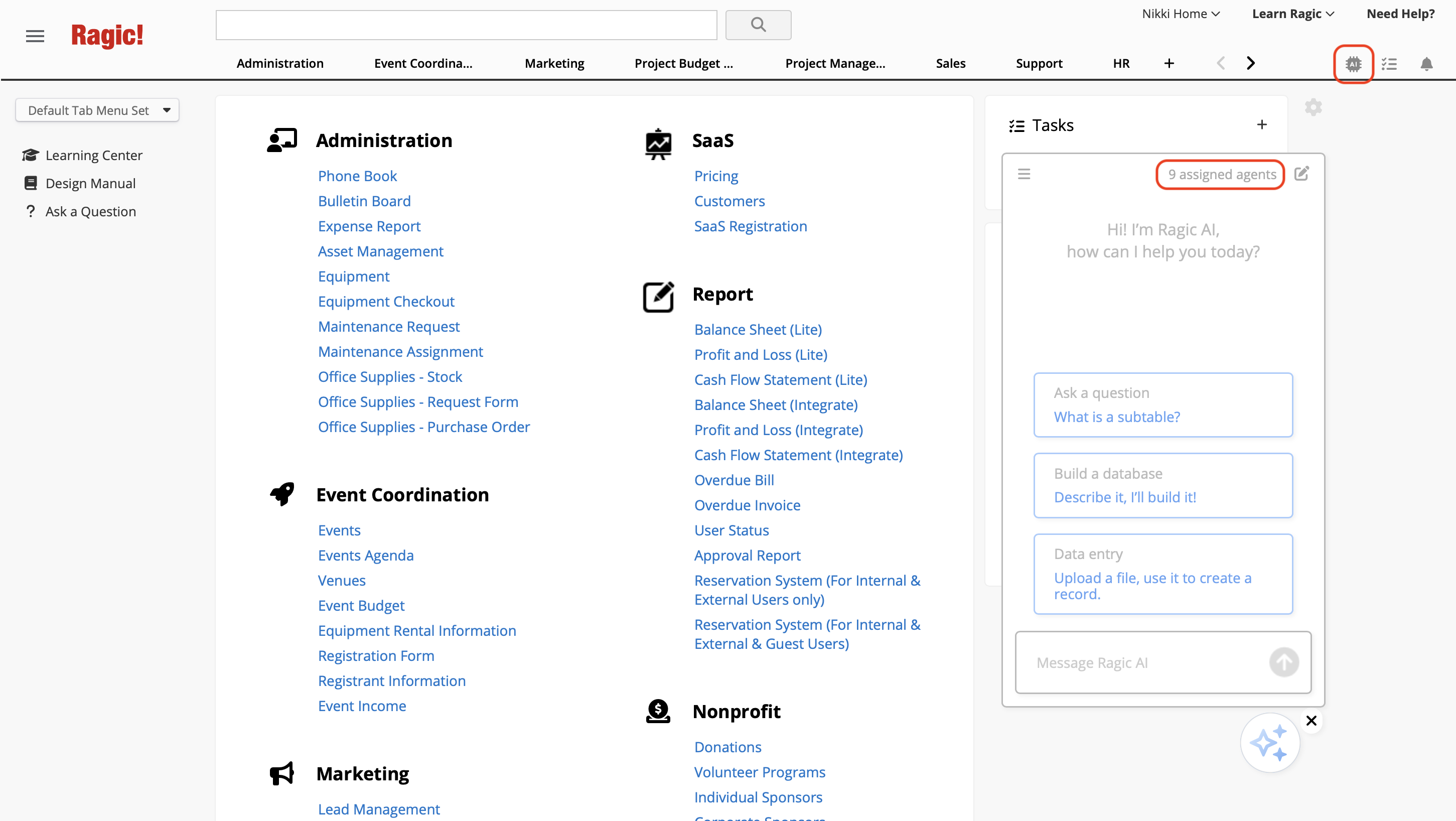
Before you begin using AI Agent, please take note of the following:

For more information pease refer to this article.
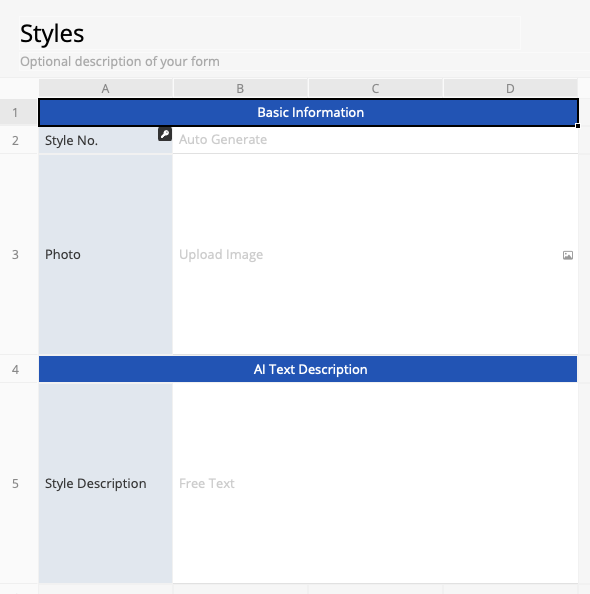
To build an image-based product finder, you'll need at least two sheets:
This sheet stores your product information. At minimum, it should contain the following fields:
1. Product or Style No.
2. Product or Style Image field
3. A field where the AI Agent can generate and store a description of the product
This sheet allows you to upload the image provided by the customer. Once uploaded, the AI Agent will search for similar products by cross-referencing the Styles Catalog. At minimum, this sheet should contain the following fields:
1. Inquiry No.
2. An image upload field
3. A field where the AI Agent can return the matching Product or Style No.
4. An image field where the AI Agent can return the Product or Style Image
5. A field where the AI Agent can explain its search process or provide details about the result
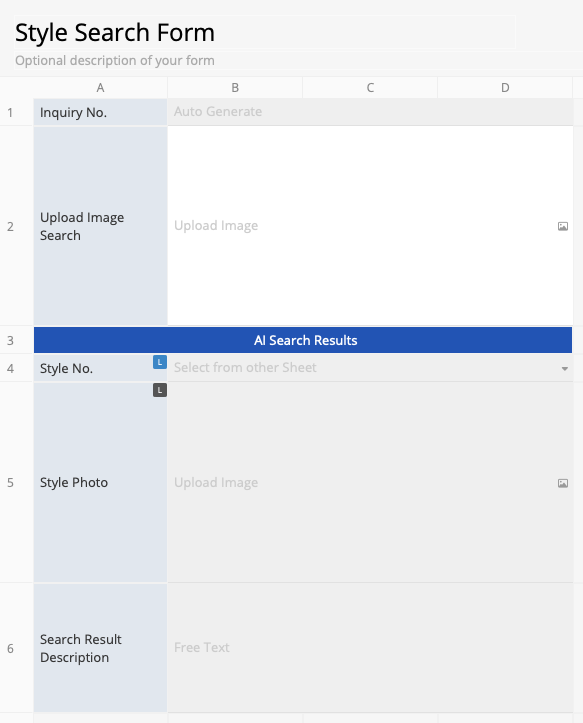
For the Style No. field and Style Photo fields, use link and load to automatically pull the corresponding information from the Styles Catalog when a match is found.
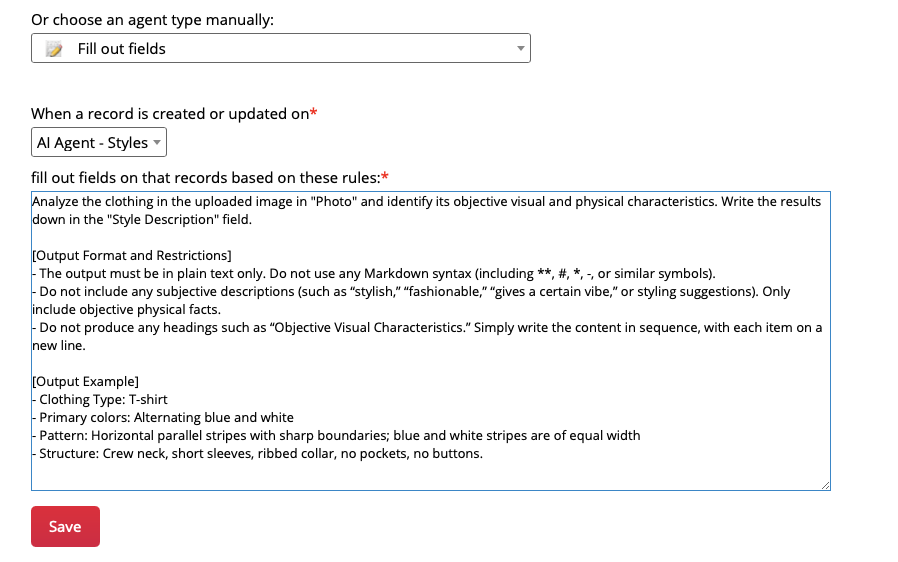
First, we want the Agent to automatically generate a product description based on the uploaded image whenever a new product is added to the Styles catalog. Providing AI with objective criteria to focus on will significantly improve recognition accuracy. For apparel products, you can use a prompt like this:
Analyze the clothing in the uploaded image in "Photo" and identify its objective visual and physical characteristics. Write the results down in the "Style Description" field.

[Output Format and Restrictions]
- The output must be in plain text only. Do not use any Markdown syntax (including **, #, *, -, or similar symbols).
- Do not include any subjective descriptions (such as “stylish,” “fashionable,” “gives a certain vibe,” or styling suggestions). Only include objective physical facts.
- Do not produce any headings such as “Objective Visual Characteristics.” Simply write the content in sequence, with each item on a new line.

[Output Example]
- Clothing Type: T-shirt
- Primary colors: Alternating blue and white
- Pattern: Horizontal parallel stripes with sharp boundaries; blue and white stripes are of equal width
- Structure: Crew neck, short sleeves, ribbed collar, no pockets, no buttons.
Make sure the agent type is "fill out fields" and "Styles" is selected as the target sheet. Refer to the example below:
You can modify the "Output Example" section based on your industry and include specific details you want the AI Agent to pay attention to. For example, if you specialize in luxury handbags, you might use:
[Output Example]
- Item Type: Front flap top-handle bag
- Primary colors: Caramel brown
- Material Texture: Pebbled leather, fine grain, and matte
- Hardware Details: Gold metal clasp, rectangular lock with beveled corners, two circular eyelets on each side
- Stitching Characteristics: Yellow diagonal stitching, approximately eight inches per stitch, black edge paint along the seams
If you operate a plant or gardening business, you might use:
[Output Example]
- Plant Type: Succulent
- Primary Colors: Sage green with pale pink leaf tips
- Leaf Texture: Surface coated with powdery white layer, no visible leaf veins
- Growth Structure: Compact rosette formation, obovate leaves, smooth edges, no serrations
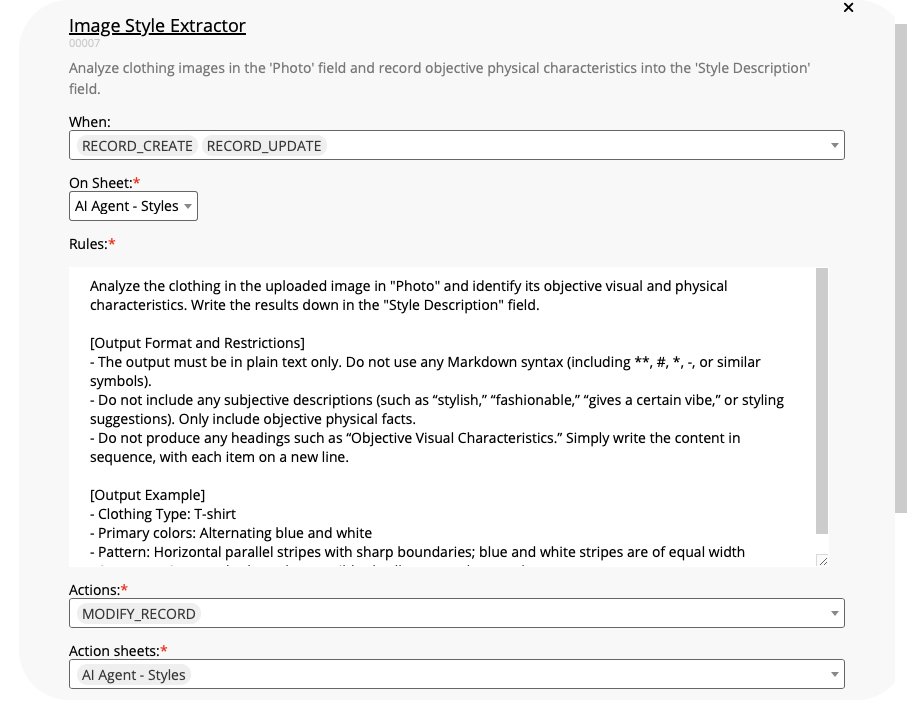
After creating the AI Agent, revisit its settings page to verify that the configuration has been generated correctly. A properly configured Agent should have "MODIFY_RECORD" as the action, "Styles" as the action sheet, and "Style Description" as the editable field under guardrails:
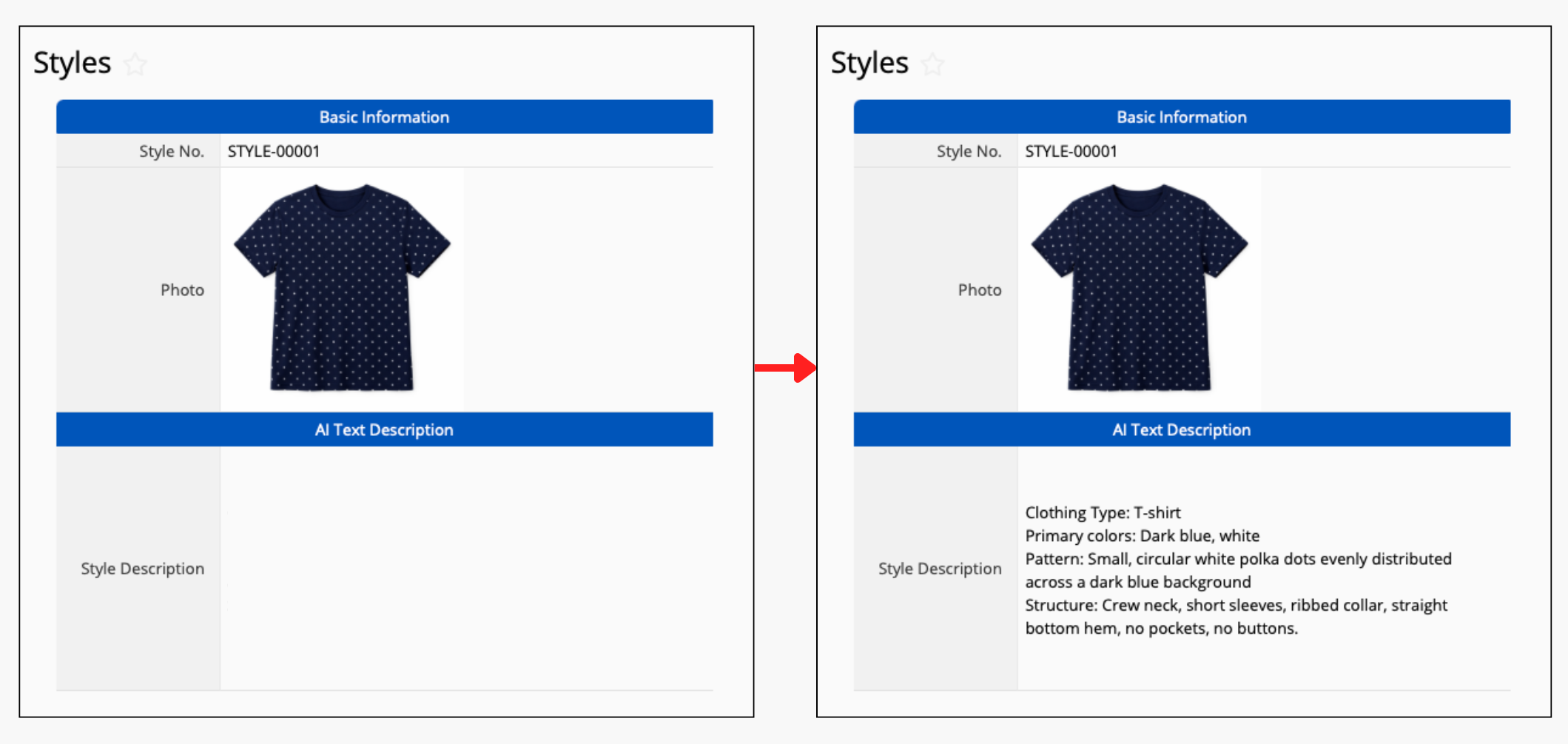
Once the AI Agent has been configured, try creating a record in the Styles sheet and upload a product image. Wait about 5 to 15 seconds, and the AI Agent should automatically fill in the style description field with the product's visual characteristics.
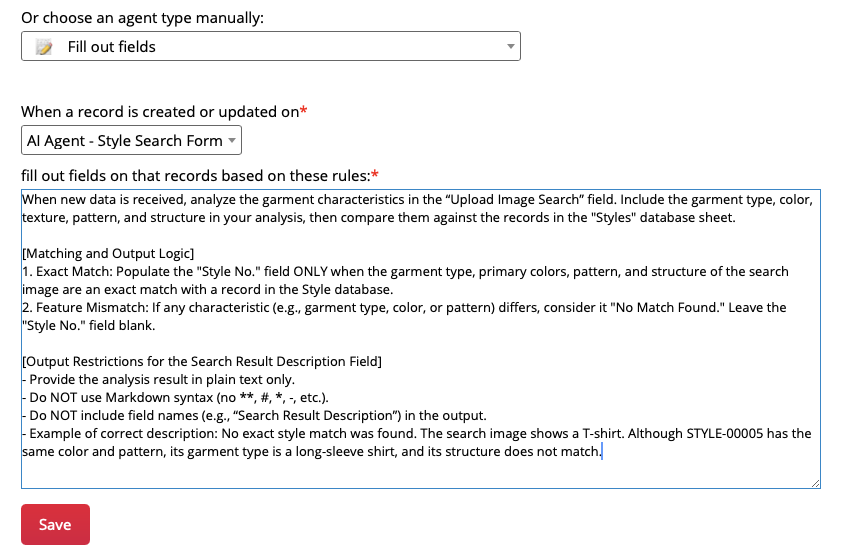
Next, we need to create the second Agent that will be triggered whenever an image is uploaded to the Style Search Form, allowing it to search the Styles catalog and find products with matching visual characteristics. You can refer to the following example:
When new data is received, analyze the garment characteristics in the “Upload Image Search” field. Include the garment type, color, texture, pattern, and structure in your analysis, then compare them against the records in the "Styles" database sheet.

[Matching and Output Logic]
1. Exact Match: Populate the "Style No." field ONLY when the garment type, primary colors, pattern, and structure of the search image are an exact match with a record in the Style database.
2. Feature Mismatch: If any characteristic (e.g., garment type, color, or pattern) differs, consider it "No Match Found." Leave the "Style No." field blank.

[Output Restrictions for the Search Result Description Field]
- Provide the analysis result in plain text only.
- Do NOT use Markdown syntax (no **, #, *, -, etc.).
- Do NOT include field names (e.g., “Search Result Description”) in the output.
- Example of correct description: No exact style match was found. The search image shows a T-shirt. Although STYLE-00005 has the same color and pattern, its garment type is a long-sleeve shirt, and its structure does not match.
Make sure the agent type is "fill out fields" and "Style Search Form" is selected as the target sheet. Refer to the example below:
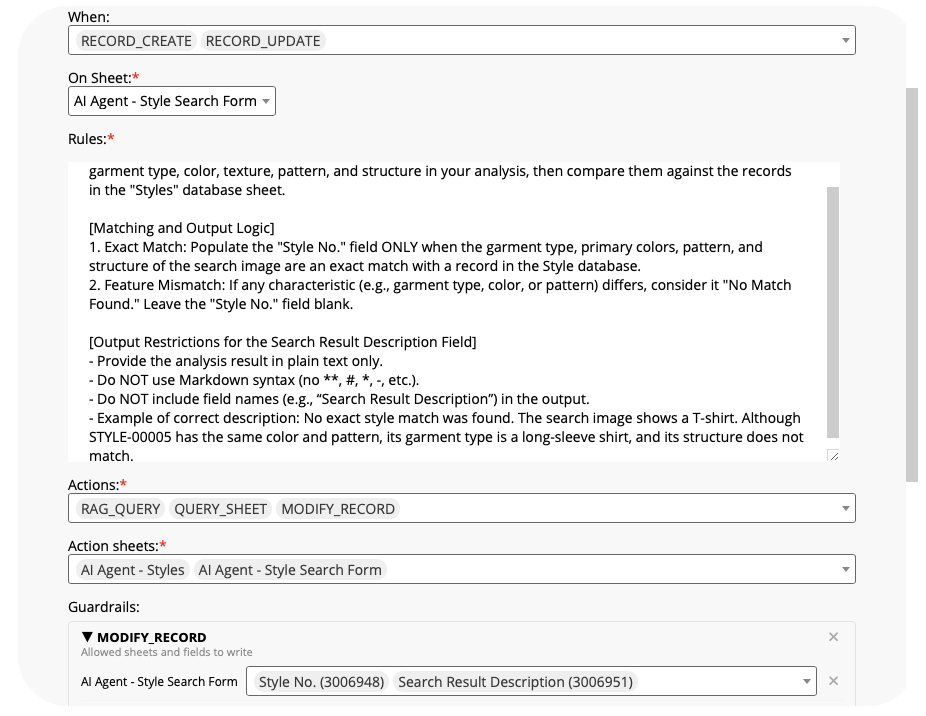
If you made any changes to the [Output Example] section of the previous AI Agent, make sure to make the corresponding changes to this Agent's prompt as well. After setting up the agent, revisit its settings page to verify that the generated configuration is correct. A properly configured Agent should look like the example below. Pay extra attention to the following settings:
The agent "actions" should include RAG_QUERY, QUERY_SHEET, and MODIFY_RECORD.
Both the "Styles" and "Style Search Form" should be included in the action sheets.
Under the "modify record" guardrail, the Agent should be allowed to update the "Style No." and "Style Result Description" fields.
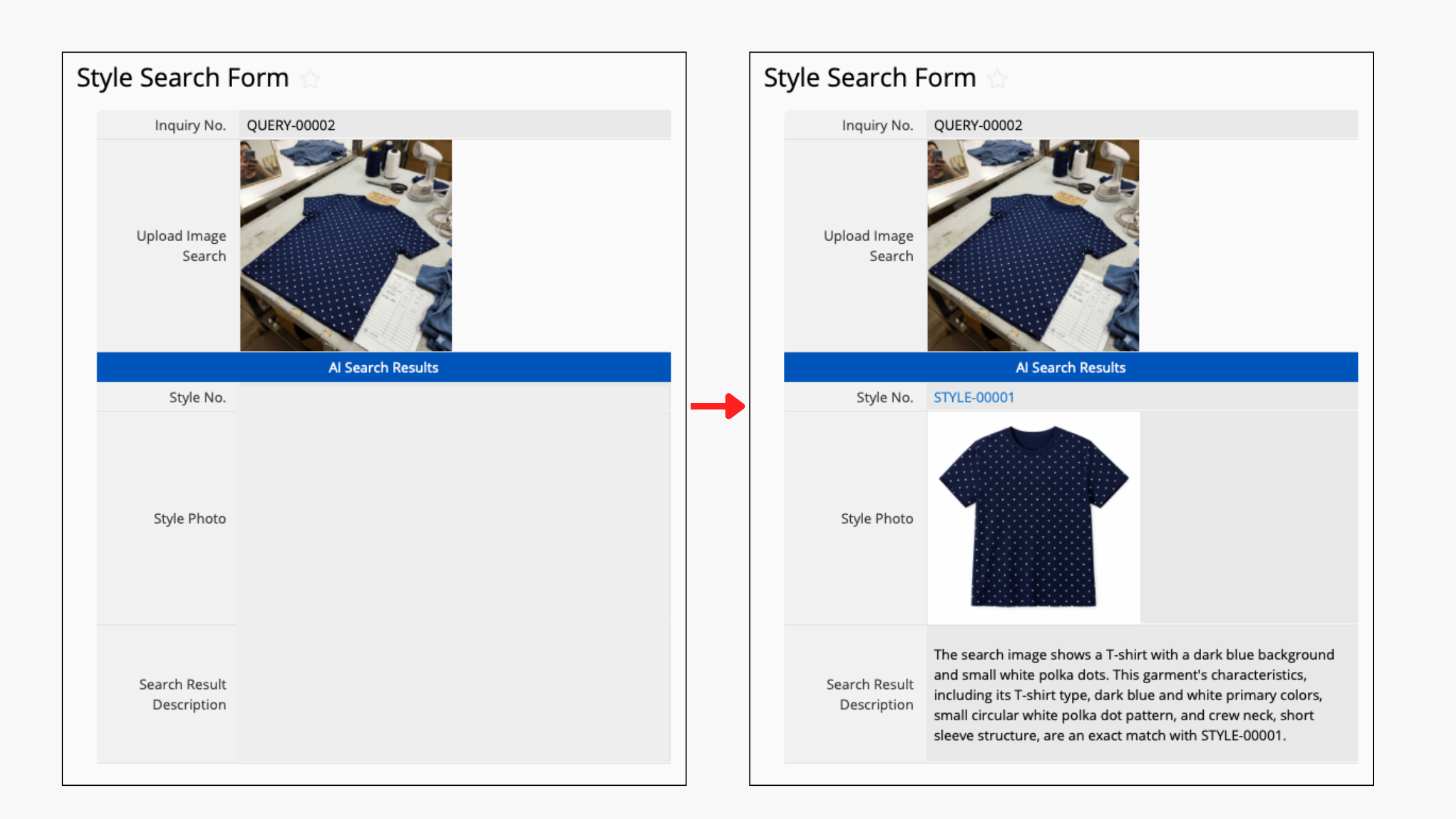
Once the AI Agent has been configured, try creating a record in the Style Search Form and upload a product image. Wait about 10 to 20 seconds, and the AI Agent should automatically fill in the matching product and provide an explanation of its search process and results.
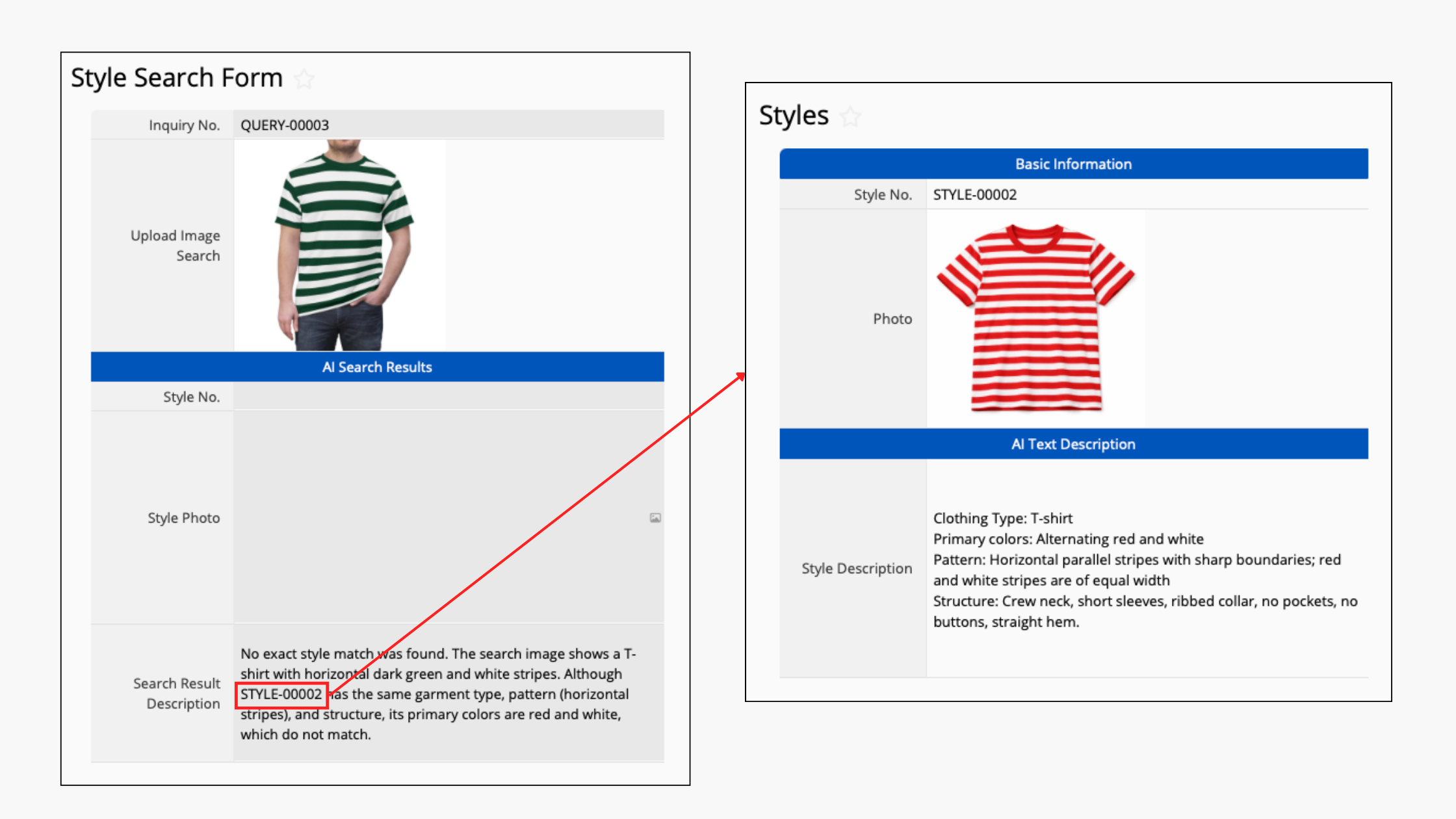
You can also test how the AI Agent would behave when there is not exact match in your Styles catalog. For example, if your catalog contains a red-and-white striped T-shirt, but the customer image uploaded is a green-and-white striped T-shirt, the AI Agent may return a result similar to the example below, indicating that a similar style exists, while also noting the differences in color:
 Thank you for your valuable feedback!