 Learning center
Learning center
Learning center
Worried about missing quotation details or sending an incorrect quote?
For sales, purchasing, and administrative teams, preparing quotations often involves reviewing many details, including product items, quantities, unit prices, discounts, delivery dates, and special notes. However, these cannot always be fully checked using formulas or input validation alone. Different product combinations may follow different discount rules, while pricing and delivery dates can vary depending on customer requirements, profit margins, or sales decisions.
When teams handle large volumes of customer communication, quotations, and orders every day, manually reviewing every quotation is not always realistic. Yet even a small mistake, such as an unreasonable price, an incorrect discount, an unrealistic delivery date, or a missing condition, can lead to financial loss or damage to customer relationships.
With the Ragic Agent template, you can set up a Quotation Reviewer to automatically review quotations. When the AI Agent detects potential issues or items that require attention, it can leave comments directly in the record. Since the review results are stored in your database, you can easily compare feedback with quotation details and follow up without switching between different AI tools.
If you do not have a Ragic account yet, please complete registration first. After registering, you can start with the Free Plan. To explore more features, you can also apply for a 30-day free Professional Plan trial with no credit card required. No charges will be made without your consent. For more information, please refer to the Pricing Page.
After logging in, click the  icon in the top right corner to open the AI panel, then click AI Agent.
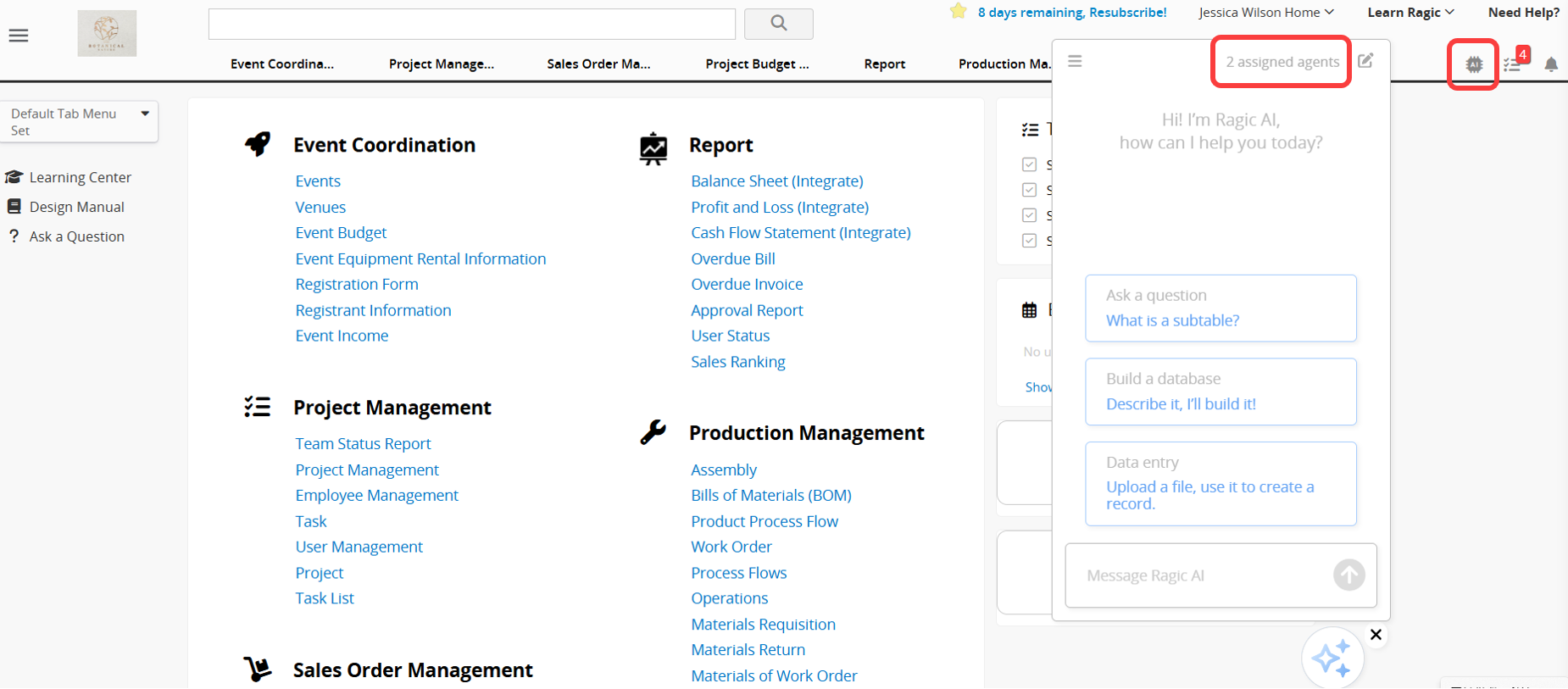
Before getting started with AI Agent, please note the following:
1. Running an AI Agent consumes AI Usage. The amount used varies depending on the complexity of the task and the selected Model.
2. Each database includes free monthly AI Usage for testing, and the amount varies by plan. Paid Plans include free usage based on the plan and the number of users. A Trial account receives a fixed amount of AI Usage for evaluation, regardless of plan or user count. The Free Plan also includes basic usage for testing. You can use the free AI Usage to explore and test the feature before deciding whether to upgrade your plan or purchase additional AI Usage.
3. When the free AI Usage is used up, the system will not charge you automatically. Instead, AI features will be paused. To continue using AI features, Paid Plans can purchase extra usage as needed. AI Usage is calculated in USD. Trial account cannot purchase additional AI Usage, and users on the Free Plan can continue using AI after monthly usage is refreshed. Charges are incurred only when you actively upgrade your plan or purchase additional AI Usage.
4. You can view the Usage Report for each Agent over the past 30 days, including call counts and usage costs. This helps you understand how AI Usage is being used and adjust Agent settings as needed.
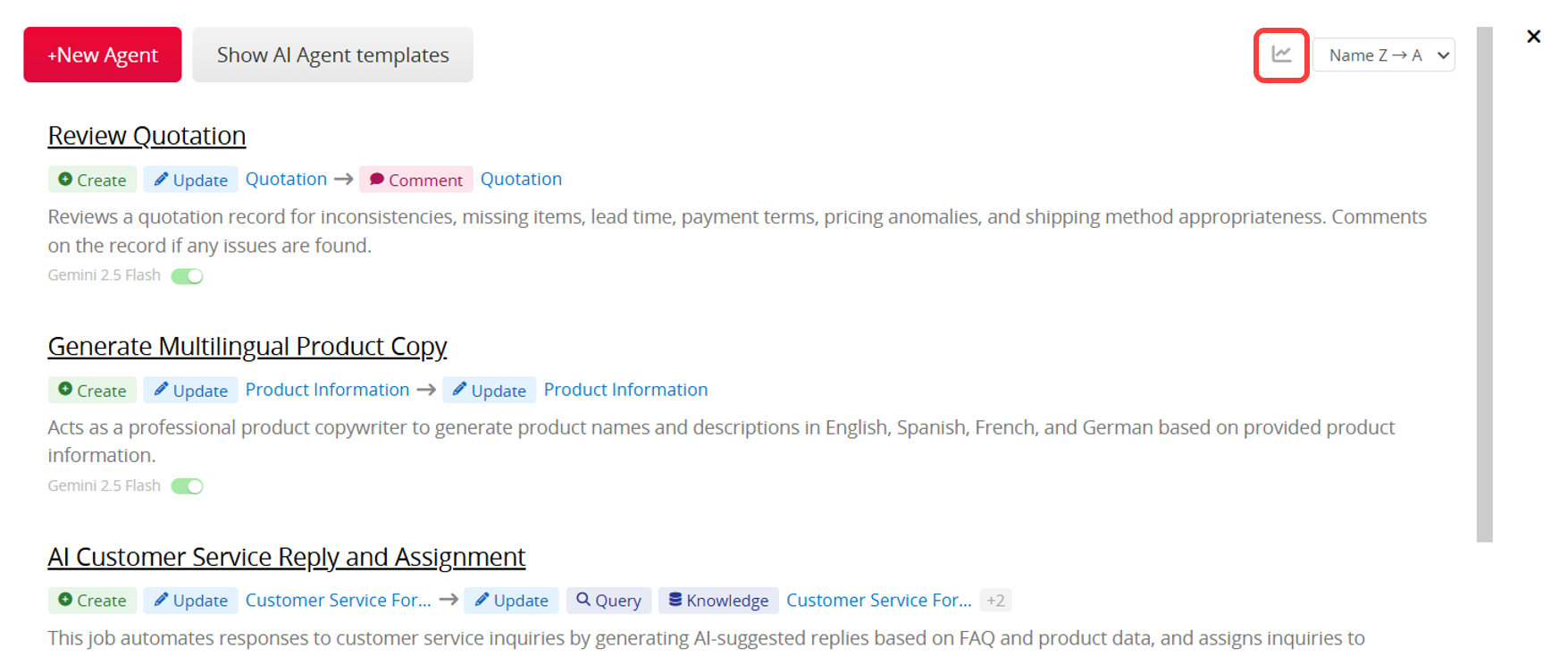
For more information, please refer to this article.
When creating a new AI Agent, you can find and apply the Quotation Reviewer template at the top of the page.
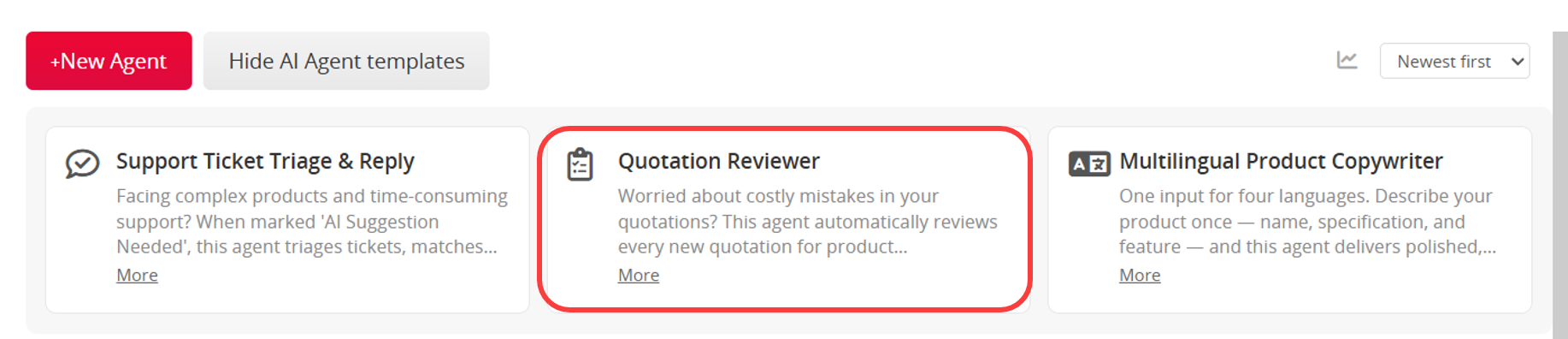
Depending on your current database needs, you can choose one of the following methods:
Method 1: Use the Template Sheets Directly
If your database is new or you have not yet created quotation-related sheets, it is recommended to start with the template sheets. Once the template is saved, the system will automatically install the related sheets and settings. You can begin testing immediately using the built-in fields and workflows without designing everything from scratch. This is also a quick way to understand how the AI Agent works.
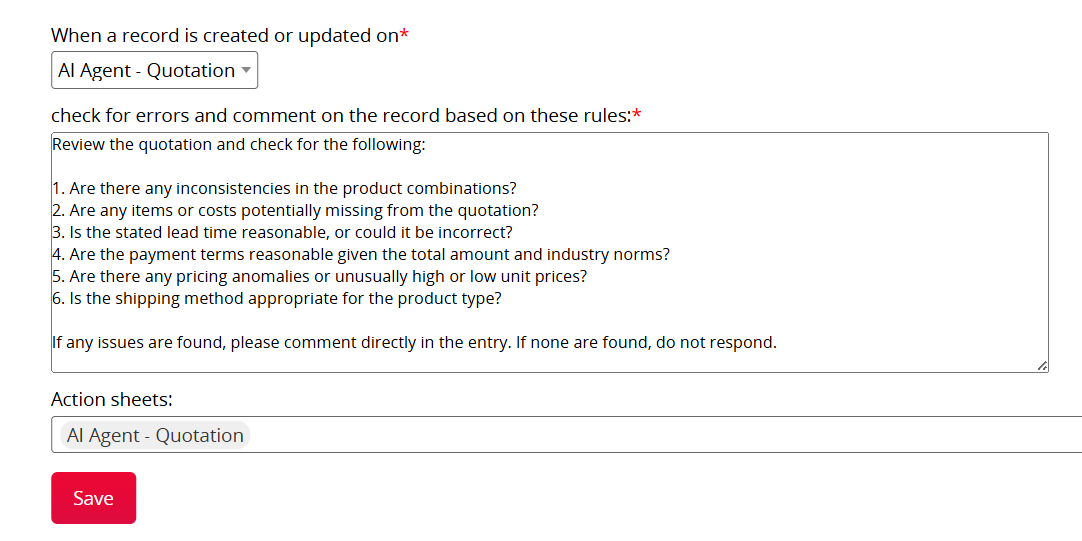
Method 2: Apply the Template to Your Existing Sheets
If you already have quotation sheets or an established quotation workflow, you can apply the AI Agent to your own sheets instead.
This option is ideal for teams with existing sales, purchasing, or administrative processes, as it allows direct integration into current systems without rebuilding databases. However, after applying the template to your own sheets, you may need to adjust the Agent rules and settings to fit your workflow better. For more details, please refer to this section.
When using the template sheets, simply create or update a quotation record and save it. After approximately 10 to 20 seconds, the AI Agent will automatically review the quotation content.
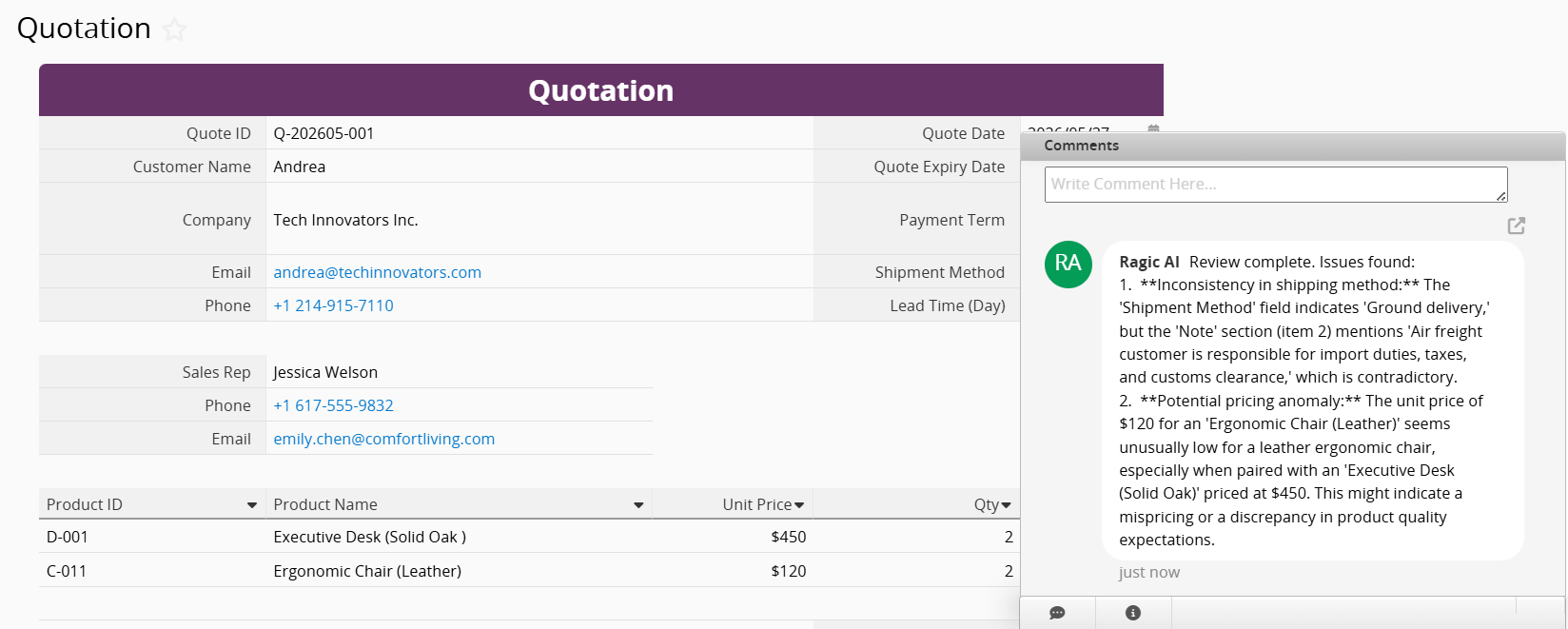
The current template is designed to help the AI Agent review records and leave comments only when a potential issue is detected. For example, it may remind users to reconfirm pricing, discounts, delivery dates, or special notes. By default, the template does not leave comments on every record. Instead, it comments only when an exception or item requiring attention is found, helping reduce unnecessary messages and allowing users to focus on quotations that require follow-up.
If you want the AI Agent to leave a response regardless of whether an issue is found, you can adjust the AI prompt as needed. For more details, please refer to this section.
The template is only a starting point. You can customize the AI prompt, trigger rules, and review criteria to better match your quotation workflow.
If you are applying the template to your own sheets, first review the AI prompt and confirm whether any review criteria need adjustment. In addition to basic content checks, you can customize the AI's review priorities and comment behavior based on your company's quotation rules, product characteristics, or risk control needs.
For example, you can ask the AI to pay special attention to the following:
The current template provides a basic review logic that is easy to get started with. By default, it leaves comments only when an exception is found. In actual use, you can add common errors or items requiring attention to the AI prompt based on your industry, product type, and quotation workflow. You can also adjust the settings so the AI leaves review results regardless of whether an issue is found, helping the AI Agent better fit your workflow.
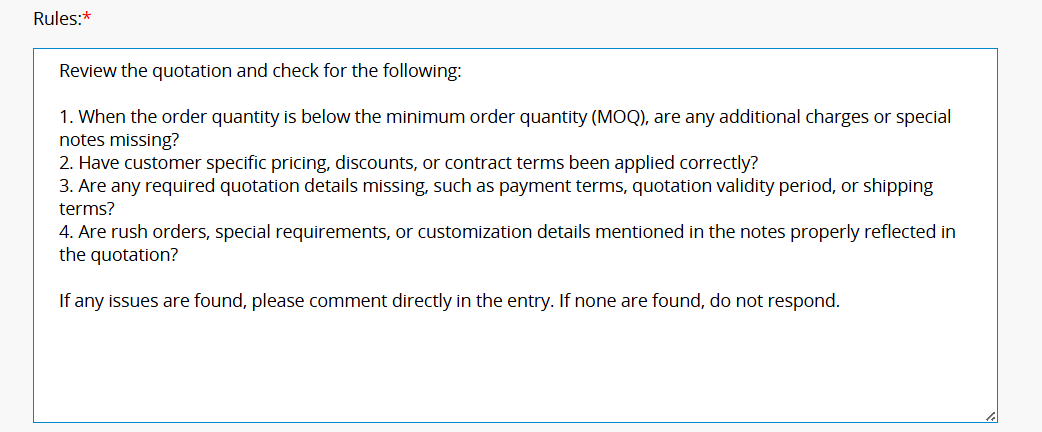
In addition, quotation sheets can be used with Ragic's Link and Load feature to connect customer sheets, product sheets, or price lists for a more complete quotation management workflow. For example, customer information, product prices, or past quotation data can be automatically loaded into the quotation sheet, making quotation management and review easier.
To get started more quickly, you can also install our free "CRM" template and use the built-in "Quotes" sheet with the AI Agent template. The customer, product, and quotation sheets are already linked and configured, so you can start using them right away without rebuilding the relationships yourself.
1. Avoid reviewing confirmed quotations repeatedly: By default, the template reviews quotation content whenever a record is created or updated.
If you do not want confirmed quotations to trigger another review, you can configure a Shared View so the Agent runs only when specific conditions are met. This helps avoid unnecessary reviews and reduces AI Usage.
For example, you can create a Selection field called "AI Review Status" and set the default value to "Unchecked".
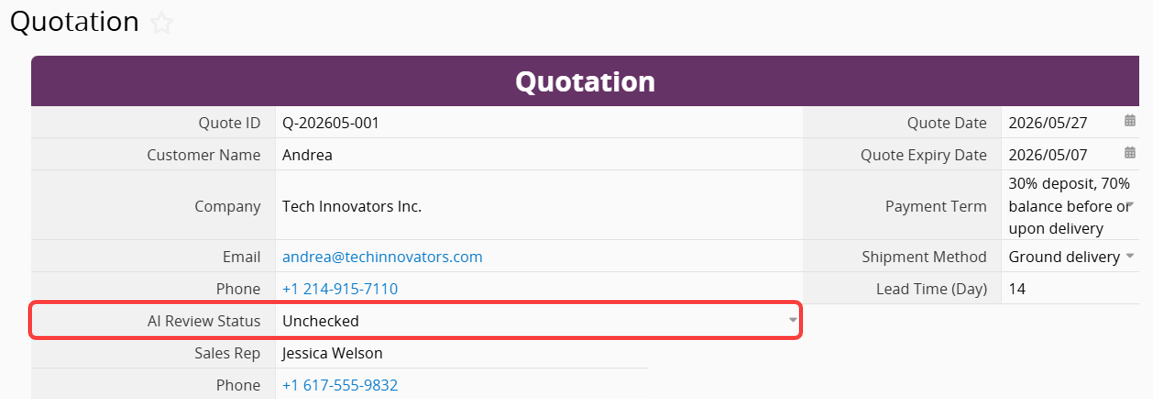
Then, configure a Shared View where "AI Review Status" equals "Unchecked". In the AI Agent settings, set the Agent to run only when records matching this view are updated.
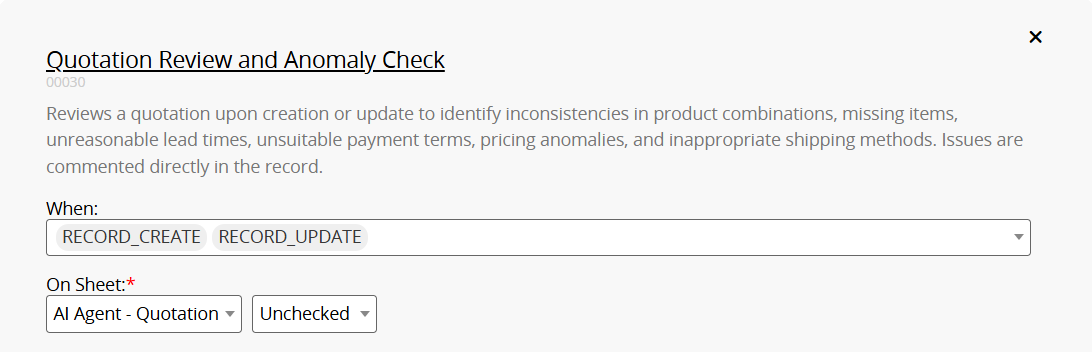
After the quotation is reviewed, change the result to "Reviewed" to prevent unrelated updates from triggering another review.
2. Create Trackable Review Results: By default, the template leaves comments only when an exception is found and does not save results for normal reviews.
If you want to keep a result after every review, you can add a Selection field called "AI Review Status". After the review is complete, the Agent can update the field to "Error Detected" when an issue is found, or "Verified" if no issue is detected. It can also leave comments when needed.
To configure this workflow, adjust the following settings:
1. In the AI prompt, ask the AI to determine the review result and update the field value accordingly.
2. Add the MODIFY_RECORD Action so the AI can update the "AI Review Result" field in addition to leaving comments.
3. In Guardrails, allow the AI to modify the "AI Review Result" field in the quotation sheet to prevent update failures caused by permission restrictions.
For more information about Agent settings, please refer to this section.
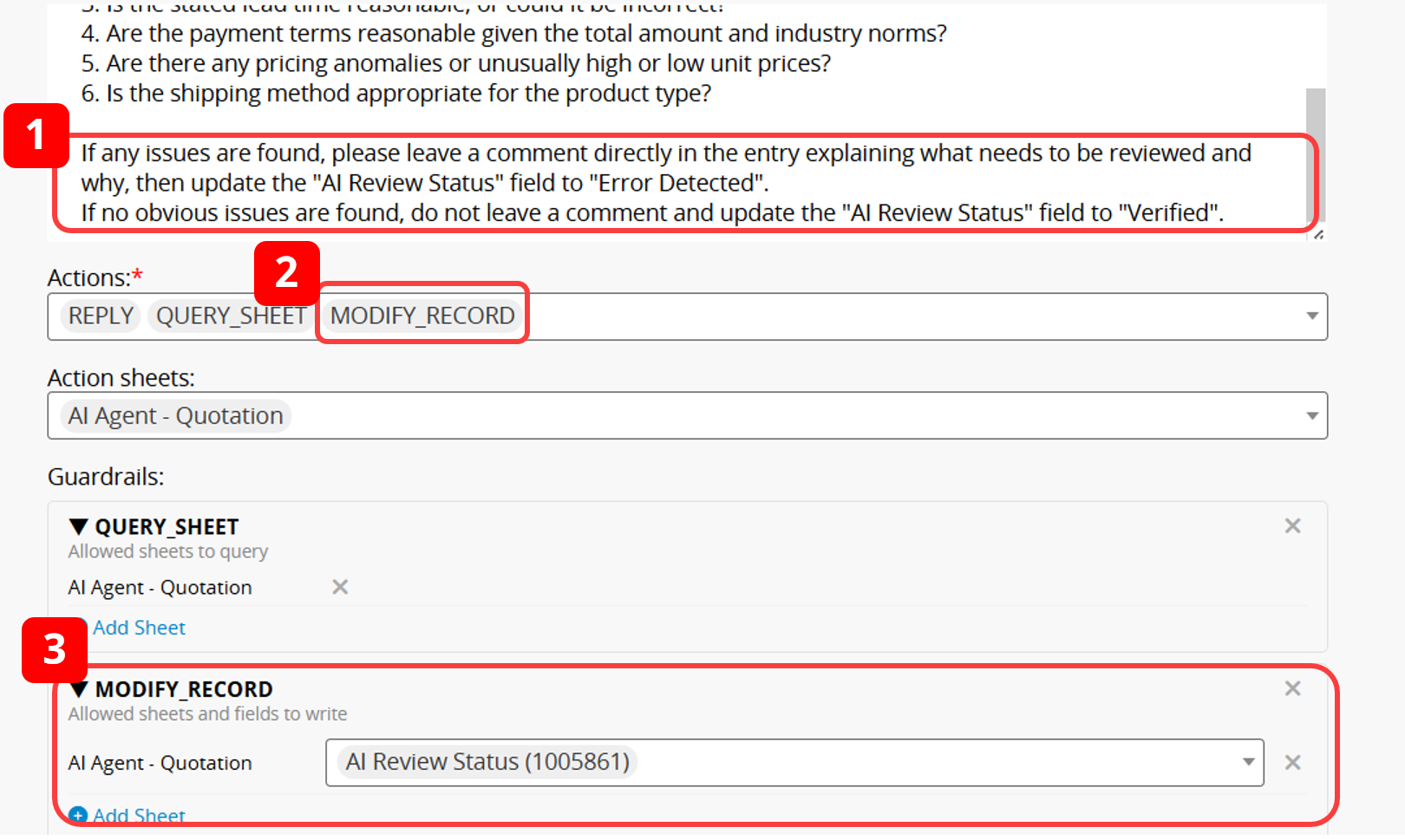
With this setup, the AI Agent can leave comments when issues are found while also updating the review status, making quotations easier to filter, track, and manage.
3. Continuously Improve Review Rules Based on Past Errors: When first applying the template, you can start with your company's basic review logic and refine the AI prompt over time based on common quotation errors.
For example, you can collect past quotation issues, such as missing special fees, failing to adjust delivery dates for rush orders, not reflecting customization requirements in pricing, or missing important information in specific situations. These cases can then be added as AI review rules.
Through ongoing testing and refinement, the AI Agent can better match your company's quotation practices, improving review accuracy and aligning more closely with your daily sales workflow.
 Thank you for your valuable feedback!