 Learning center
Learning center
Learning center
After installing the integrated or simplified version of the "Accounting" template, the three financial statements for each respective version will be installed under the "Reports" tab.
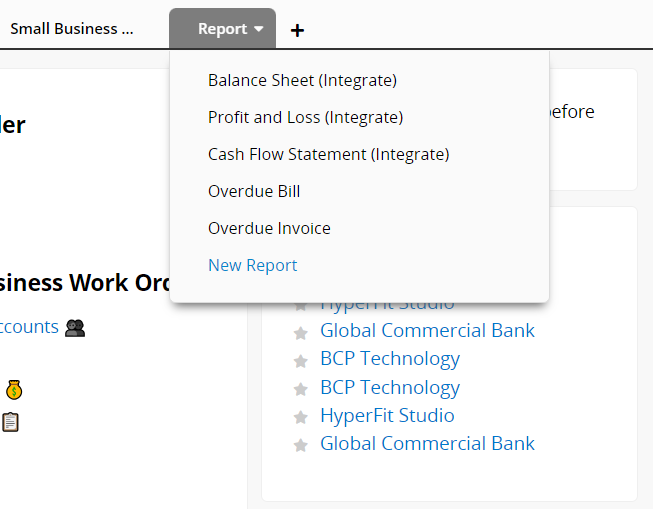
Please do not delete any financial statements to avoid disrupting the functionality.
You can add account titles following the naming rule. Choose system-default options for the first, second, and third account grades. For the fourth grade, you can name it yourself, but it must be "Account Code - Account Name". Please do not delete or modify any default account titles to avoid affecting the operation of reports.
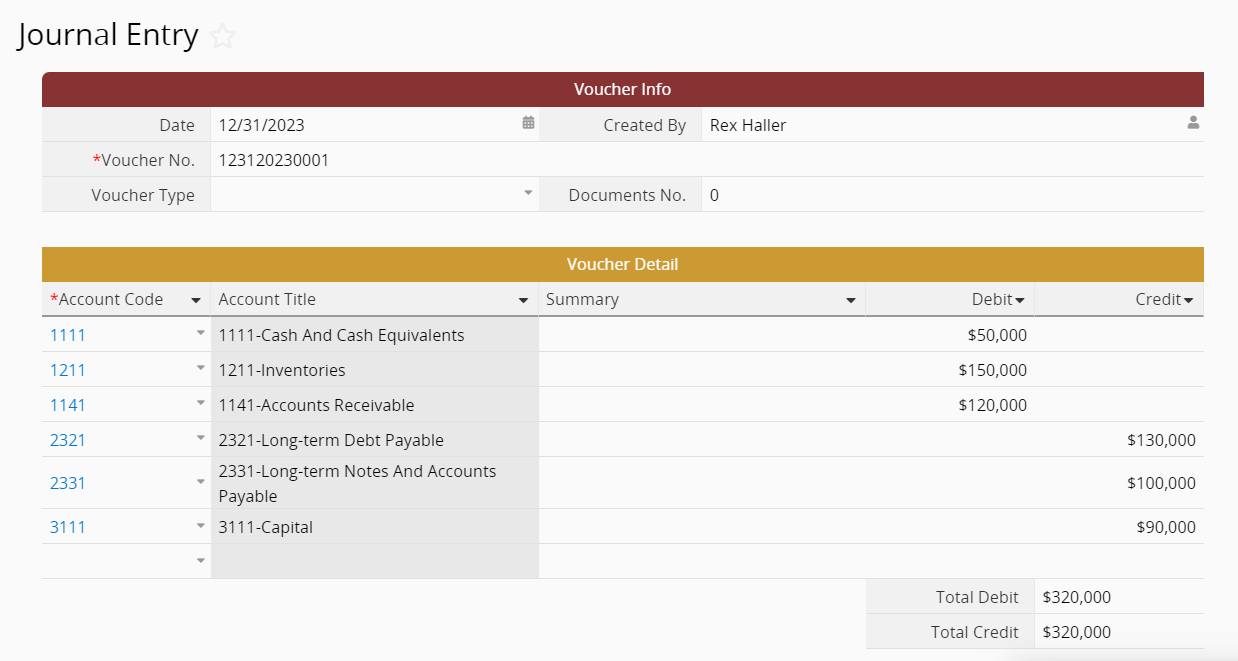
To open entries, you can include the opening balances for the account titles you need within a "Journal Entry" record, during the initial setup, or at the beginning of each fiscal year.
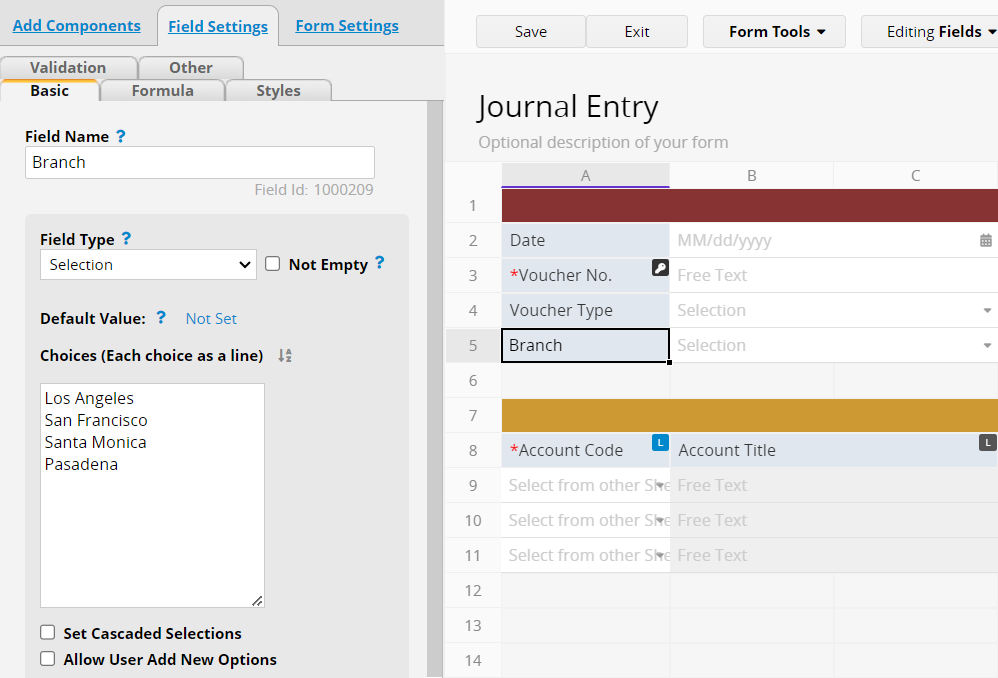
If you want to use the "Accounting" template to simultaneously manage the data of multiple branches, you can add a selection field called "Branch" to the "Journal Entry" Sheet.
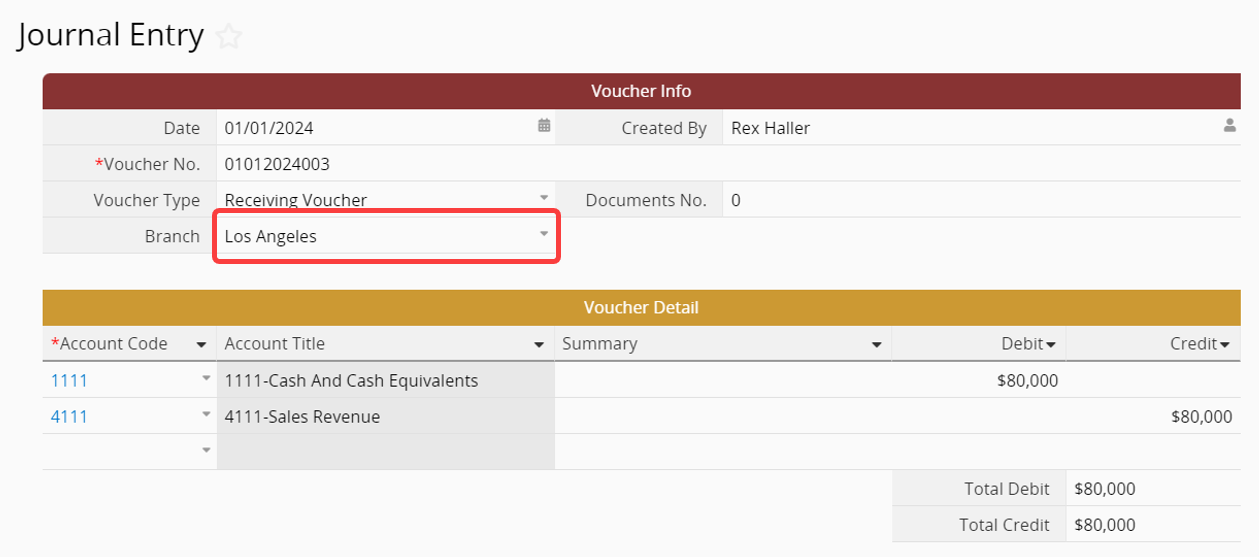
When adding a "Journal Entry" record, also remember to select the corresponding branch.
Navigate to the "Voucher Detail", and use Link Fields From Parent Sheets to add the previously created "Branch" field.
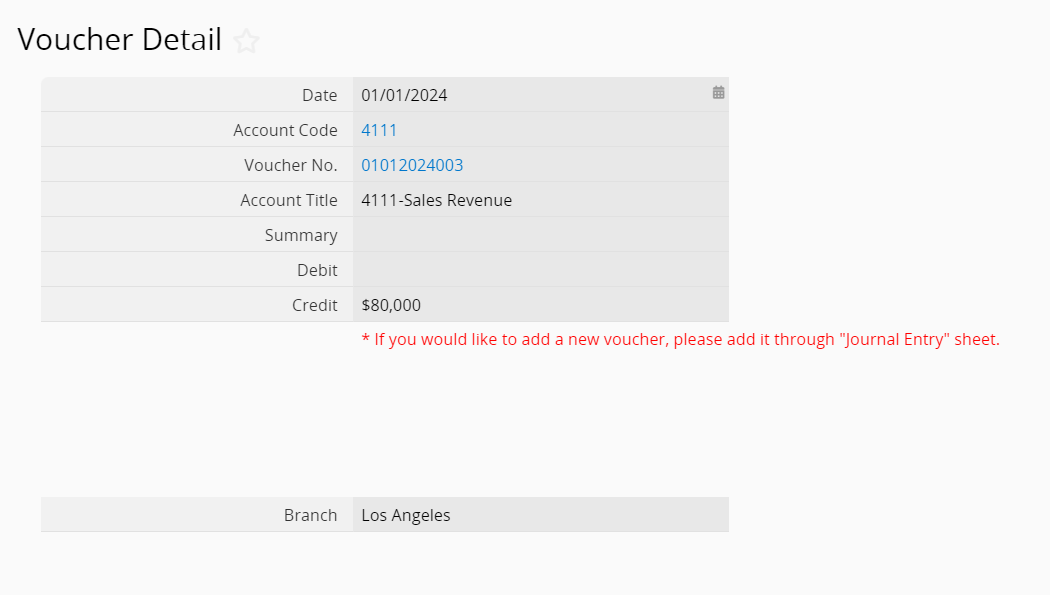
Also, in the "Voucher Detail", add the configuration for filtering each branch as Shared Views.
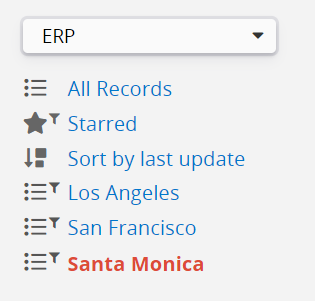
Finally, when generating the three financial statements, you can choose which branch to analyze in the upper right corner.

If no filters are applied, it means that reports will be generated from all records.
After filtering for a specific company, enter the corresponding name in the Company name field above, then click Generate Report. The company name will appear in the report title.
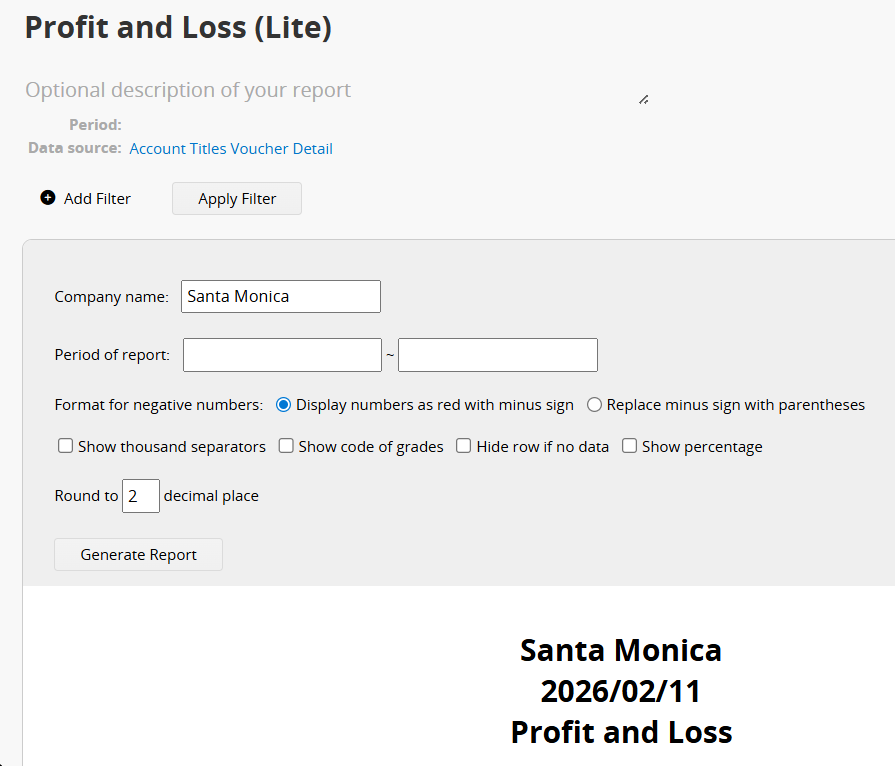
You can also use the Save as new report function to save separate reports for each branch.
Since March 22, 2024, the Accounting templates have supported the “Create Journal Entry” action button, allowing you to generate a Journal Entry with one click. If the template was installed before this date, please refer to this article for manual upgrade instructions.
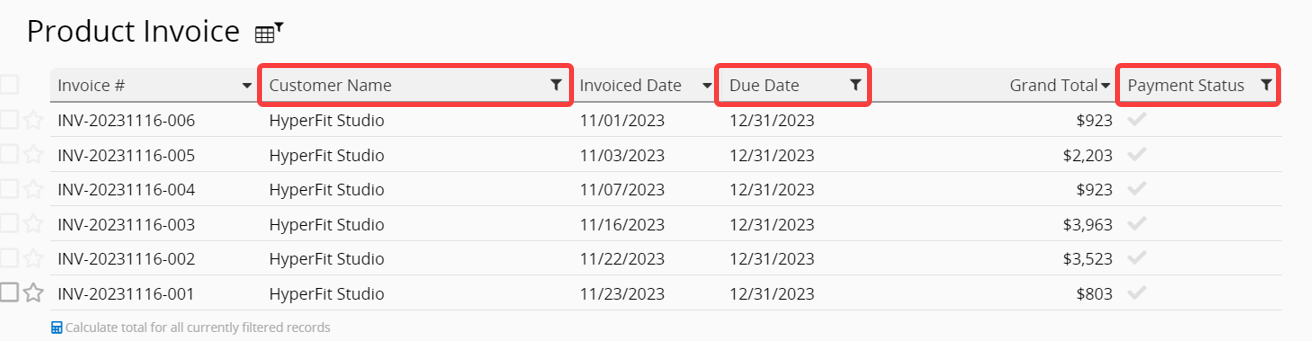
To generate a monthly reconciliation statement for a specific customer, you can filter the records in the "Product Invoice". Specify the "Customer Name," the "Due Date" of the month, and the "Payment Status" as "No" as conditions. The data retrieved will then represent the reconciliation statement for that customer for the specified month.
The rule for the three financial statements in the template adheres to IFRS principles. However, the data source is the "Journal Entry", it is essential that your company's accounting entries also adhere to IFRS principles.
Currently, the template supports only up to fourth grade account titles. If you need fifth grade titles, please contact Ragic support to remove the restrictions on the "Account Titles" for the "Code" field. This will allow you to remove the formulas and Validation on that field, enabling you to freely input different account codes.
Please evaluate whether this meets your requirements.
 Thank you for your valuable feedback!
